> For the complete documentation index, see [llms.txt](https://help.novatalks.com.ua/en/llms.txt). Markdown versions of documentation pages are available by appending `.md` to page URLs; this page is available as [Markdown](https://help.novatalks.com.ua/en/get-started/conversations/conversation-panel/editor.md).

# Message editor

The message editor is the field where you write a reply to a customer, a private note, the first message of a new dialog, a campaign text or a canned response. The editor is the same everywhere; the tools you get depend on where you write and on the channel the message goes through.

## Editor elements <a href="#editor-elements" id="editor-elements"></a>

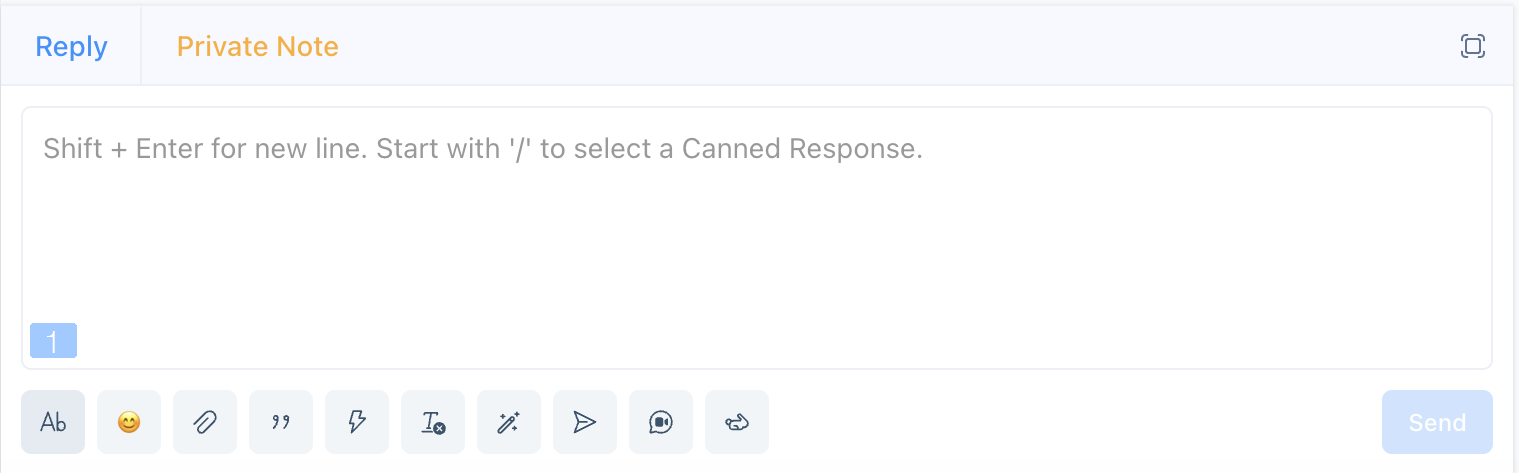
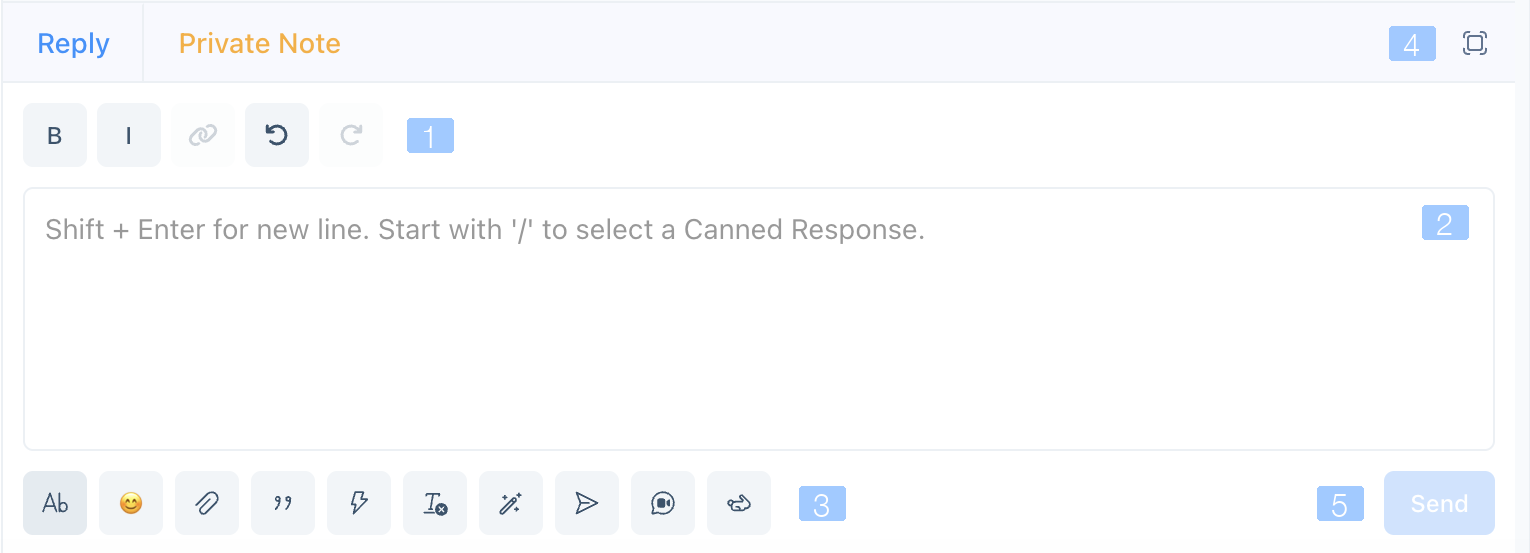
<figure><img src="https://content.gitbook.com/content/5yF7NRiGknx3Bqj4OgYA/blobs/pUis9jC0ji8CKsL5P78T/images/editor-reply.png" alt="Message editor in the conversation panel, Reply tab"><figcaption><p>The editor in the conversation panel, Reply tab</p></figcaption></figure>

1. **Formatting bar**: **Bold** (B), *Italic* (I), link (chain icon), Undo, Redo. You can hide the bar with the **Formatting options** button.
2. **Text field.** A scrollbar appears when the text does not fit.
3. **Toolbar** (left to right): **Formatting options** (Ab), **Emoji**, **Attach file**, **Canned responses**, **Macros**, **Cancel message formatting** and custom buttons (for example, [AI Assistant](https://help.novatalks.com.ua/en/get-started/conversations/conversation-panel/ai-assistant)).
4. **Expand** the editor into a larger window over the conversation.
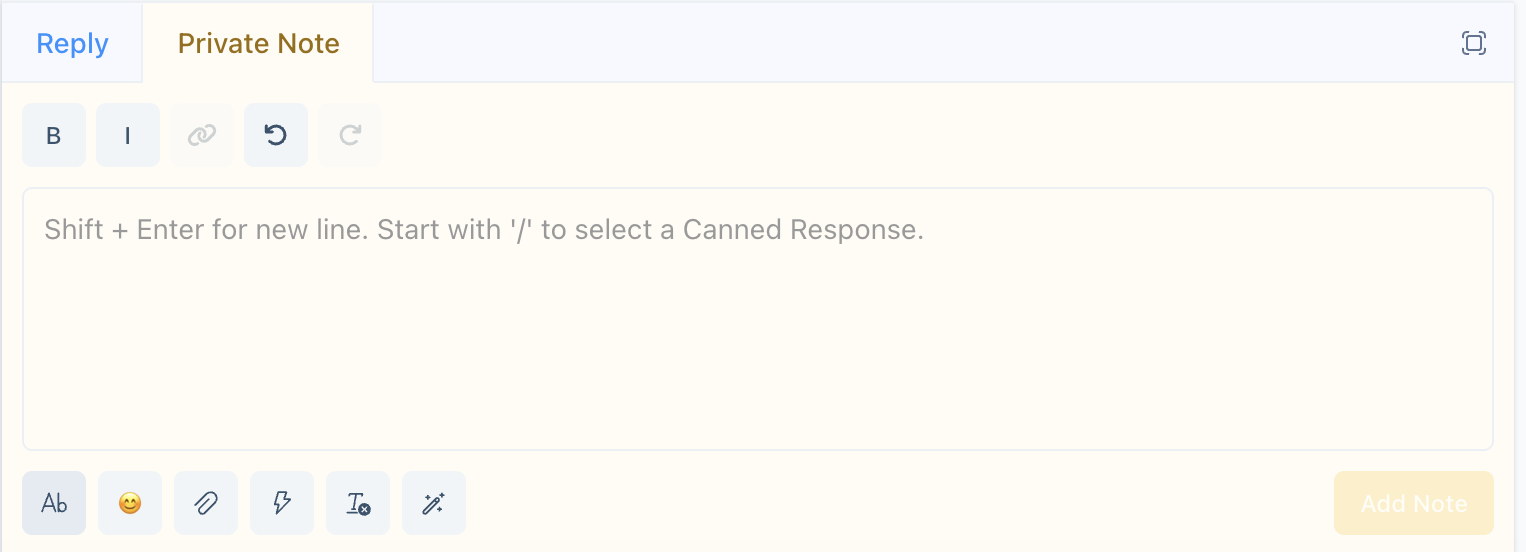
5. **Send** (**Add Note** on the Private Note tab). The button is active when the field contains text or attachments.

<figure><img src="https://content.gitbook.com/content/5yF7NRiGknx3Bqj4OgYA/blobs/UoLpIGdVlTFrMSeTZClO/images/editor-private-note.png" alt="Editor on the Private Note tab"><figcaption><p>Private Note tab. The note is visible only to system users, and there is no Canned responses button here</p></figcaption></figure>

{% hint style="info" %}
For **Call** conversations the Reply tab is not available; Private Note opens right away.
{% endhint %}

## What is available in each channel <a href="#what-is-available-in-each-channel" id="what-is-available-in-each-channel"></a>

Not every messenger can display bold text, italics or links with a title, so the editor shows only the buttons the conversation channel supports.

| Channel                                                                                                             | Bold and italic | Links with a title | Attachments |
| ------------------------------------------------------------------------------------------------------------------- | :-------------: | :----------------: | :---------: |
| Website widget                                                                                                      |        ✅        |          ✅         |      ✅      |
| Email                                                                                                               |        ✅        |          ✅         |      ✅      |
| Telegram by phone                                                                                                   |        ✅        |          ✅         |      ✅      |
| Telegram via API channel                                                                                            |        ✅        |          ✅         |      ✅      |
| Other messengers via API channel (WhatsApp, Viber, Instagram, Messenger, Apple Business Chat, LINE, WeChat, Signal) |        —        |          —         |      ✅      |
| Viber by phone                                                                                                      |        —        |          —         |      ✅      |
| WhatsApp by phone                                                                                                   |        —        |          —         |      ✅      |
| SDK                                                                                                                 |        —        |          —         |      ✅      |

If links with a title are not supported, the customer receives only the link address (see [Links](#links)).

A private note is not sent to the customer, but it has the same tools as the conversation channel: formatting, links, attachments. In **Call** conversations the note supports bold, italic and links (shown as addresses).

In a **new dialog**, the tools depend on the selected channel. If you change the channel after typing, your text is kept, and formatting the new channel does not support is removed.

Some tools depend on where you write:

| Feature                           | Reply | Private note | New dialog | Campaigns | Canned responses (settings) |
| --------------------------------- | :---: | :----------: | :--------: | :-------: | :-------------------------: |
| Canned responses (`/` and button) |   ✅   |       —      |      ✅     |     —     |              —              |
| Variables (`{{`)                  |   ✅   |       ✅      |      ✅     |     ✅     |              ✅              |
| Mentioning colleagues (`@`)       |   —   |       ✅      |      —     |     —     |              —              |
| Macros                            |   ✅   |       ✅      |      —     |     —     |              —              |

## Text formatting <a href="#text-formatting" id="text-formatting"></a>

To format text, select it and click **Bold (B)** or **Italic (I)**, or press **Ctrl+B** / **Ctrl+I** (on Mac: **⌘B** / **⌘I**). If nothing is selected, an active button applies formatting to the text you type next. Click the button again to turn formatting off. Bold, italic and links can be combined.

* After a new line (**Shift+Enter**) formatting is turned off, and you continue typing plain text.
* **Cancel message formatting** removes bold, italic and links from the whole text. Links keep only their title and lose the address, so you will need to add them again.
* Undo and Redo revert and repeat your latest changes (typing, formatting, pasting) in any channel.

### How to hide or open the formatting bar <a href="#hide-or-show-the-formatting-bar" id="hide-or-show-the-formatting-bar"></a>

The **Formatting options** (**Ab**) button on the toolbar hides or opens the formatting bar above the text field. The button is available on the **Reply** and **Private Note** tabs. The bar is shown by default, and your choice is remembered for all conversations.

<figure><img src="https://content.gitbook.com/content/5yF7NRiGknx3Bqj4OgYA/blobs/UqcATZt63iRbVXKyE67k/images/editor-formatting-hidden.png" alt="Formatting bar hidden, Formatting options button"><figcaption><p>The formatting bar is hidden. Click Formatting options (1) to open it</p></figcaption></figure>

{% hint style="info" %}
When the bar is hidden, you can still use **Ctrl+B** / **Ctrl+I** (on Mac: **⌘B** / **⌘I**) for bold and italic. To add a link, open the formatting bar first.
{% endhint %}

## Links <a href="#links" id="links"></a>

### How to add a link

1. Select the text that should become a link.
2. Click the link button (chain icon) on the formatting bar. If the bar is hidden, click **Formatting options** (Ab).
3. Enter the address, for example `https://novatalks.com.ua`, and confirm.

The selected text becomes a link. Enter the full address including `https://`; the editor does not add it. An address you paste or type into the text does not become a link by itself.

### How to change or remove a link

* **Remove a link:** select the whole link and click the link button. The text stays, the link is removed.
* **Change the address:** remove the link and add it again with the new address.
* **Change the title:** edit the link text right in the text field.

{% hint style="warning" %}
A space does not end a link: whatever you type right after a link becomes part of its title. To continue with plain text, first move out of the link with → or ←.
{% endhint %}

Clicking a link in the text field does not open it; it only places the cursor.

### Links in channels without title support <a href="#links-in-channels-without-title-support" id="links-in-channels-without-title-support"></a>

Messengers in the [table above](#what-is-available-in-each-channel) that do not support links with a title receive only the address:

| In the editor                                    | What the customer sees in Widget, Email, Telegram | What the customer sees in WhatsApp, Viber and others |
| ------------------------------------------------ | ------------------------------------------------- | ---------------------------------------------------- |
| link "Our website" to `https://novatalks.com.ua` | Our website (clickable)                           | <https://novatalks.com.ua>                           |

{% hint style="warning" %}
In these channels the link is shown in the editor as an address right away. If you change the address directly in the text, the customer still receives the original one. To change the link, remove it and add it again with the link button.

A link typed manually as `[title](address)` is received by the customer in these channels as plain text, brackets included.
{% endhint %}

## New line and sending <a href="#new-line-and-sending" id="new-line-and-sending"></a>

| Keys            | Reply and private note | New dialog, campaigns, canned responses |
| --------------- | ---------------------- | --------------------------------------- |
| **Enter**       | send                   | new paragraph                           |
| **Shift+Enter** | new line               | new line                                |

* Empty lines and several spaces in a row between words are kept.
* Spaces and empty lines at the end of a message are not sent.
* A message consisting only of spaces cannot be sent.

## Pasting text from other apps <a href="#pasting-text-from-other-apps" id="pasting-text-from-other-apps"></a>

You can paste text from any app with **Ctrl+V** (on Mac: **⌘V**).

* Text from a website, Word or an email keeps bold, italic and links if the channel supports formatting. Colour, font and size are not carried over. In channels without formatting the text is pasted as plain text.
* Markup such as `**bold**`, `*italic*`, `[title](address)` in pasted text becomes formatting and links.
* The characters `<`, `>` and `&` are pasted and sent as they are.
* A screenshot or a file from the clipboard is added as an attachment where attaching files is available. One file is added per paste.

To remove the formatting of pasted text, click **Cancel message formatting**.

## Canned responses, variables and mentions <a href="#canned-responses-variables-and-mentions" id="canned-responses-variables-and-mentions"></a>

### Canned responses <a href="#canned-responses" id="canned-responses"></a>

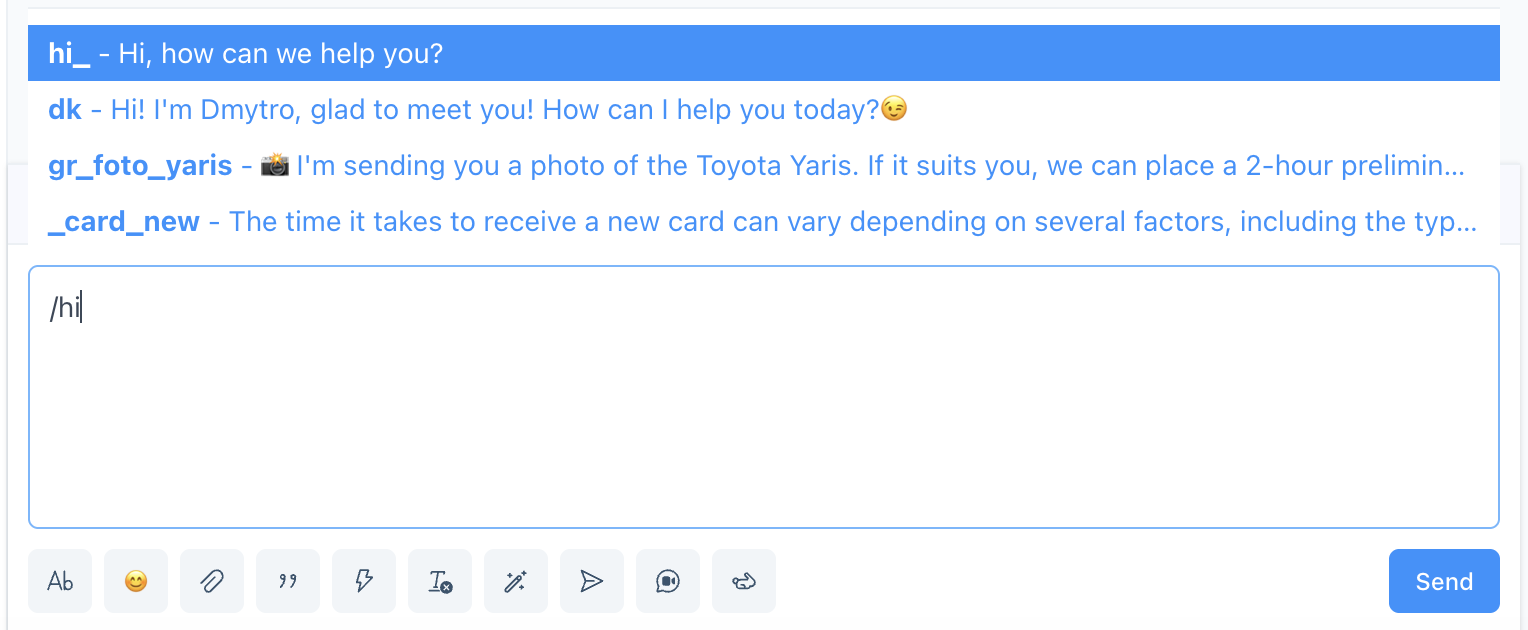
Type `/` at the start of a line or after a space and start typing the shortcode or text of a canned response. Search is case-insensitive.

<figure><img src="https://content.gitbook.com/content/5yF7NRiGknx3Bqj4OgYA/blobs/O7y1t6kHFMMUcPrAwQRc/images/editor-canned-responses.png" alt="Canned responses list after the / character"><figcaption><p>Canned responses list: shortcode — text</p></figcaption></figure>

* Choose a response with **↑** / **↓** and press **Enter**, or click it. The `/query` text is replaced with the canned response.
* The **Canned responses** button on the toolbar opens a window to search all canned responses. The selected response is inserted at the cursor.
* If the channel does not support formatting, the canned response is inserted without bold and italic, and links become addresses. The text itself is inserted in full.
* If the canned response has attached files, they are added to the message together with the text.

To learn how to create canned responses, see [Canned Responses](https://help.novatalks.com.ua/en/get-started/settings/canned-responses).

{% hint style="info" %}
Canned responses are not available in private notes, so they cannot be inserted in **Call** conversations.
{% endhint %}

### Variables <a href="#variables" id="variables"></a>

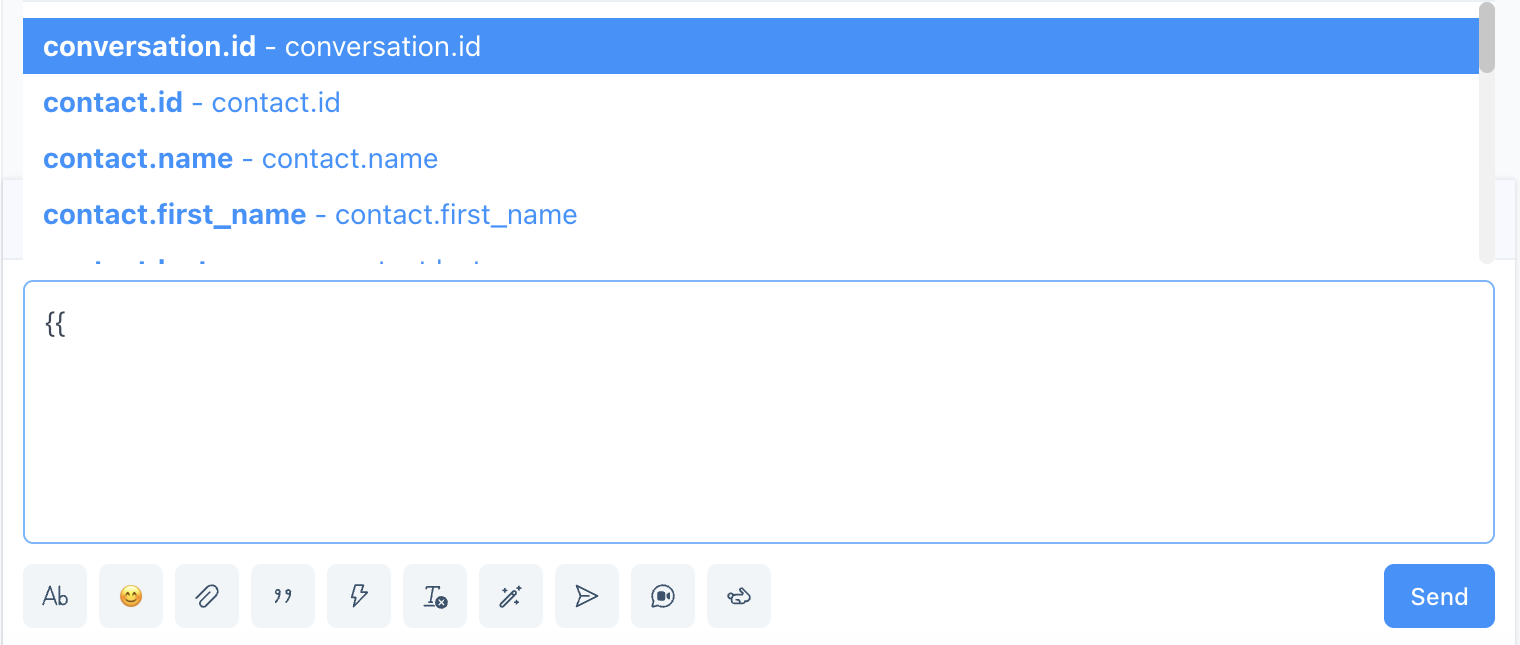
Type `{{` to open the list of variables. A variable is a placeholder for data the system fills in when the message is sent: the customer's name, their email, the agent's name, etc.

<figure><img src="https://content.gitbook.com/content/5yF7NRiGknx3Bqj4OgYA/blobs/jmGNEEolgXlpDlr7L0dF/images/editor-variables.png" alt="List of variables after {{"><figcaption><p>List of variables</p></figcaption></figure>

| Variable                                                                                                               | Replaced with                                     |
| ---------------------------------------------------------------------------------------------------------------------- | ------------------------------------------------- |
| `{{contact.name}}`, `{{contact.first_name}}`, `{{contact.last_name}}`                                                  | contact's full name, first name, last name        |
| `{{contact.email}}`, `{{contact.phone}}`, `{{contact.id}}`                                                             | contact's email, phone, ID                        |
| `{{agent.name}}`, `{{agent.first_name}}`, `{{agent.last_name}}`, `{{agent.email}}`                                     | details of the agent sending the message          |
| `{{assignee.agent.name}}`, `{{assignee.agent.first_name}}`, `{{assignee.agent.last_name}}`, `{{assignee.agent.email}}` | details of the agent assigned to the conversation |
| `{{conversation.id}}`                                                                                                  | conversation ID                                   |

{% hint style="warning" %}
If a variable has a typo or there is no data for it (for example, the contact has no phone number), the customer sees nothing in its place. Check that the contact details are filled in before sending.
{% endhint %}

### Mentions <a href="#mentions" id="mentions"></a>

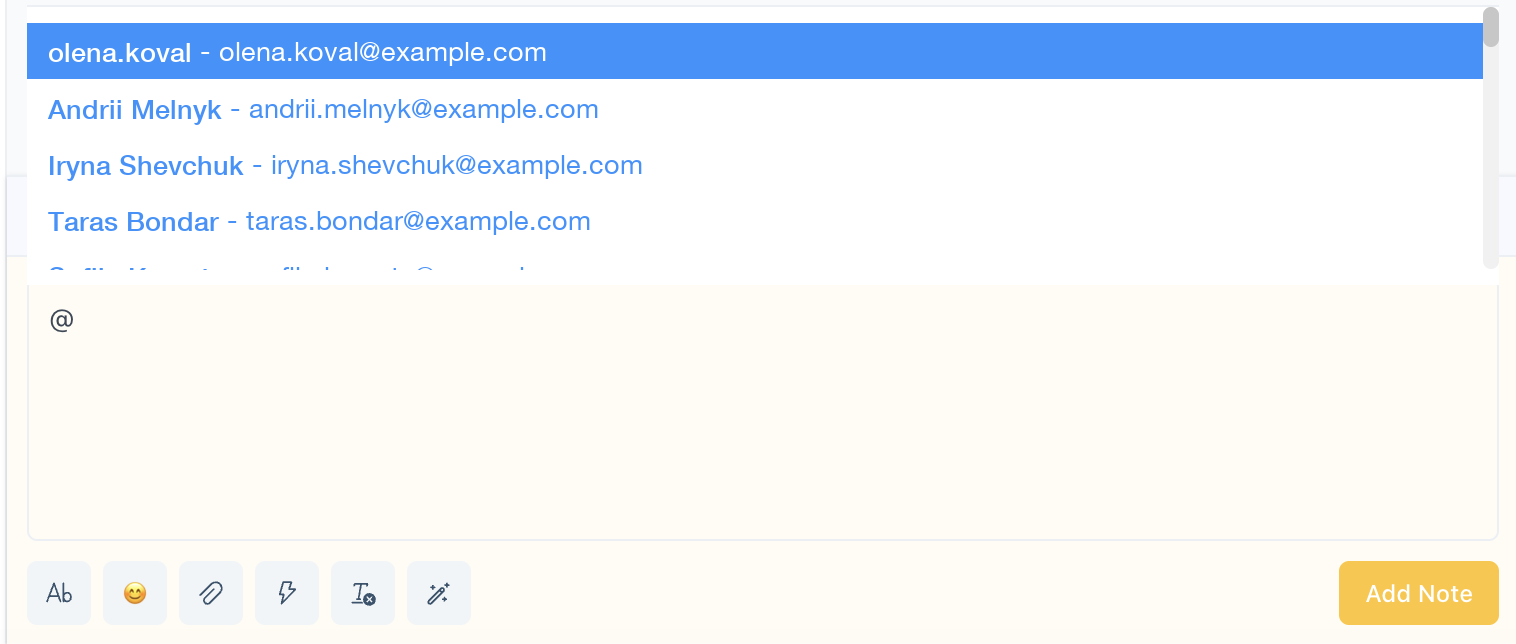
In a private note, type `@` and start typing a colleague's name. Choose them from the list with the arrow keys and **Enter**, or with the mouse. The colleague is notified about the mention if the corresponding [notification](https://help.novatalks.com.ua/en/get-started/settings/notifications) is enabled.

<figure><img src="https://content.gitbook.com/content/5yF7NRiGknx3Bqj4OgYA/blobs/OluQTk0ALlY1pqRPkEMp/images/editor-mentions.png" alt="List of users after the @ character"><figcaption><p>List of users to mention</p></figcaption></figure>

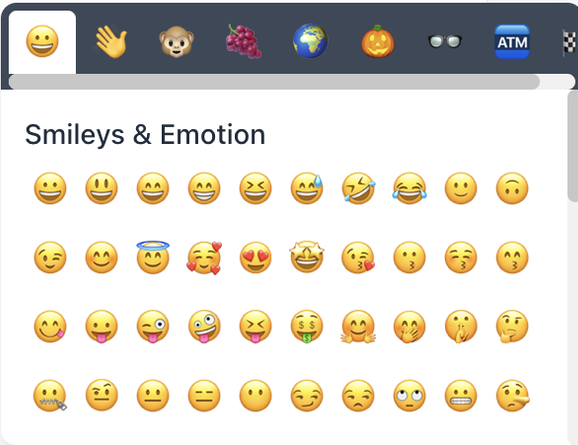
### Emoji <a href="#emojis" id="emojis"></a>

The **Emoji** button opens a catalogue by category. The emoji is inserted at the cursor, and the catalogue stays open so you can add several emoji in a row. To close it, click outside the catalogue or click the button again.

<figure><img src="https://content.gitbook.com/content/5yF7NRiGknx3Bqj4OgYA/blobs/1YD63Ypc7KLWA6WwTiAL/images/editor-emoji.png" alt="Emoji catalogue"><figcaption><p>Emoji catalogue</p></figcaption></figure>

## Attachments <a href="#attachments" id="attachments"></a>

You can add a file in three ways:

* click **Attach file** and choose a file on your computer;
* drag a file onto the **Attach file** button;
* paste a screenshot or a copied file with **Ctrl+V** / **⌘V**.

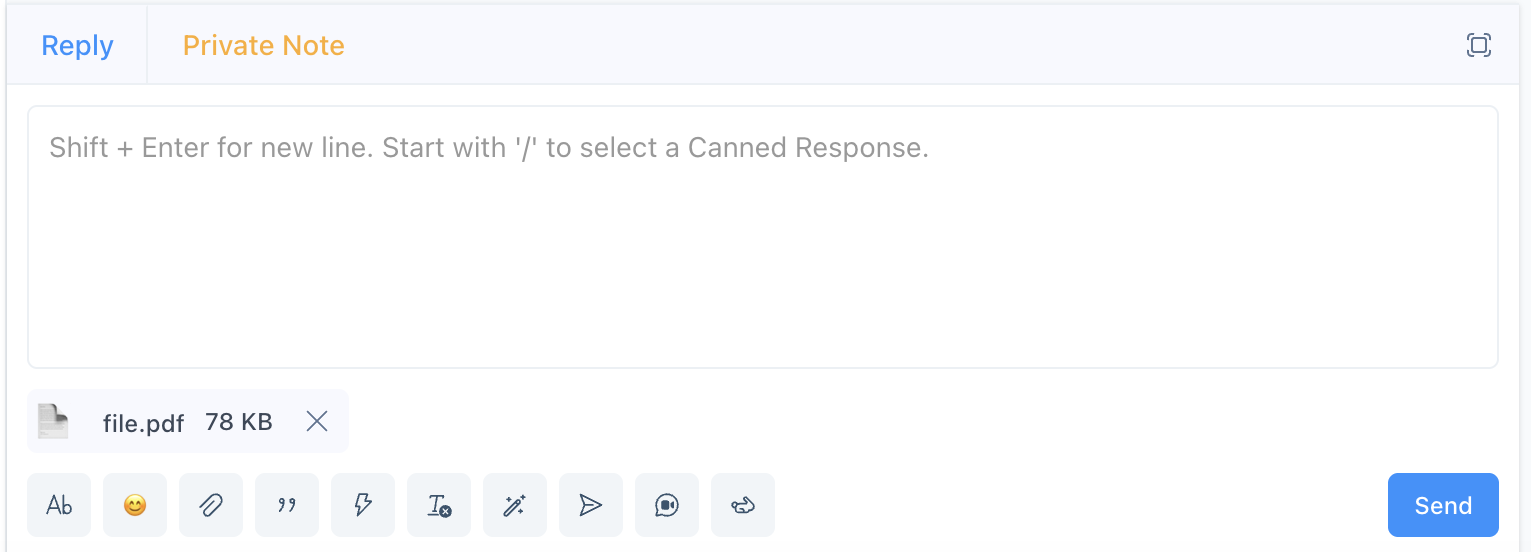
<figure><img src="https://content.gitbook.com/content/5yF7NRiGknx3Bqj4OgYA/blobs/NaQt010gToLan9ZUEKgf/images/editor-attachments.png" alt="Attached files below the text field"><figcaption><p>Attached files below the text field</p></figcaption></figure>

To remove a file, click the cross on it. A message can be sent without text, with files only.

Limits are set in the account settings. By default, a message can contain up to 5 files of up to 10 MB each. The allowed file types can be restricted there too.

| Message                                                        | What to do                                      |
| -------------------------------------------------------------- | ----------------------------------------------- |
| The file exceeds the N MB attachment limit                     | reduce the file size or send a link to the file |
| Too many files. You can upload up to N files                   | send the files in several messages              |
| File extension not supported / This file type is not supported | save the file in another format                 |
| File … is already added                                        | this file is already attached                   |

{% hint style="info" %}
How the customer receives text together with files depends on the channel. In Email it is one email with attachments. In Telegram by phone and WhatsApp by phone the text becomes the caption of the last file. In Viber by phone the text and each file arrive as separate messages.
{% endhint %}

## Drafts, character limit and expanded window <a href="#drafts-character-limit-and-expanded-window" id="drafts-character-limit-and-expanded-window"></a>

* **Drafts.** Unsent text and attachments are saved separately for each conversation. If you switch to another conversation and come back, the draft is still there.
* **Character limit.** A message can contain up to 10,000 characters (up to 640 in Facebook). A counter appears when fewer than 50 characters are left. Formatting characters, link addresses and line breaks also count toward the limit, so the counter may show more characters than you see in the field. A message over the limit cannot be sent.
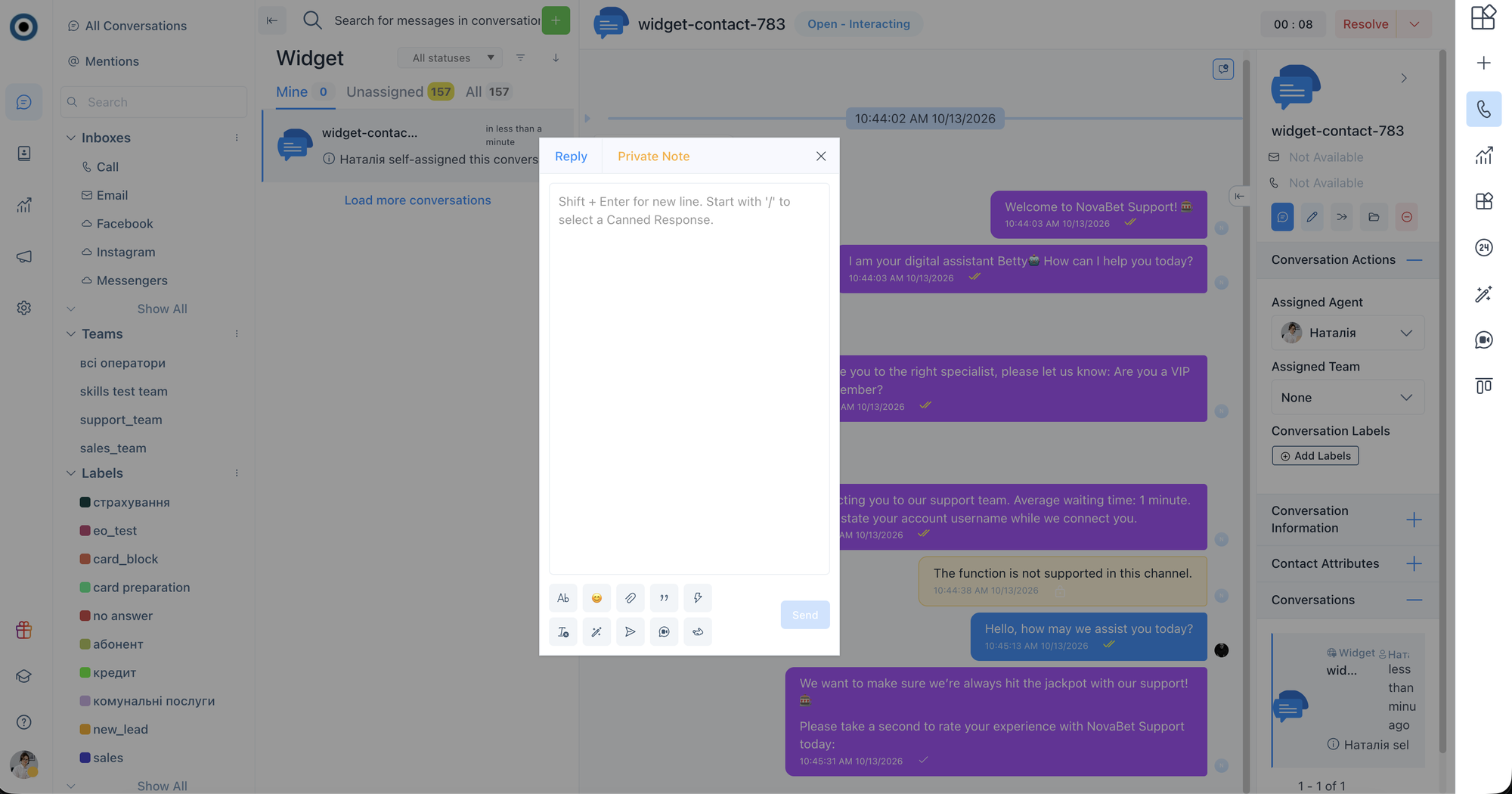
* **Expanded window.** The **Expand** button opens the editor in a larger window with the same text and attachments. To return, click the cross in the corner of the window, click outside the window or press **Esc**.

<figure><img src="https://content.gitbook.com/content/5yF7NRiGknx3Bqj4OgYA/blobs/SsdrjZPsHHWFhi2JcNI3/images/editor-popout.png" alt="The editor in the expanded window"><figcaption><p>The editor in the expanded window</p></figcaption></figure>

## Keyboard shortcuts <a href="#keyboard-shortcuts" id="keyboard-shortcuts"></a>

| Action                                             | Windows / Linux        | macOS       |
| -------------------------------------------------- | ---------------------- | ----------- |
| Send a reply or a note                             | Enter                  | Enter       |
| New line                                           | Shift+Enter            | Shift+Enter |
| Bold                                               | Ctrl+B                 | ⌘B          |
| Italic                                             | Ctrl+I                 | ⌘I          |
| Undo                                               | Ctrl+Z                 | ⌘Z          |
| Redo                                               | Ctrl+Shift+Z or Ctrl+Y | ⌘⇧Z         |
| Paste                                              | Ctrl+V                 | ⌘V          |
| Move through canned responses, variables, mentions | ↑ / ↓                  | ↑ / ↓       |
| Select a list item                                 | Enter                  | Enter       |
| Move out of a link                                 | ← / →                  | ← / →       |
| Close the expanded editor window                   | Esc                    | Esc         |

{% hint style="info" %}
Bold and italic work only in channels that support formatting.
{% endhint %}

## FAQ <a href="#faq" id="faq"></a>

<details>

<summary>Why are there no Bold and Italic buttons?</summary>

The conversation channel does not support formatting: the customer would see asterisks instead of bold text. See the list of channels in [What is available in each channel](#what-is-available-in-each-channel).

</details>

<details>

<summary>The customer received an address instead of the link title. Why?</summary>

The customer's messenger does not support links with a title, so NovaTalks sends only the address to keep the link working. This applies to WhatsApp, Viber, Instagram, Messenger and the other channels marked in the [table](#what-is-available-in-each-channel).

</details>

<details>

<summary>I changed the link address in the text, but the customer received the old one</summary>

In channels without title support, the address in the text field only shows where the link goes. Editing it does not change the link itself. Remove the link and add it again with the link button.

</details>

<details>

<summary>The text after a link became part of the link</summary>

A space does not end a link. Select the extra text and click the link button to remove the link, then add it again to the right fragment only. To avoid this, move out of the link with an arrow key after typing it.

</details>

<details>

<summary>How do I close the canned responses list if I don't want to insert anything?</summary>

The list closes when you delete the `/` character (or `@`, `{{`) or type text that matches nothing in the list.

</details>

<details>

<summary>Why did the customer receive an empty space instead of a variable?</summary>

The variable has a typo, or the corresponding contact field is empty. Check the variable name in the `{{` list and the details in the contact card.

</details>

<details>

<summary>A link disappeared after "Cancel message formatting"</summary>

The button removes all formatting, links included, and does not keep the addresses. To bring the link back, press Undo (Ctrl+Z / ⌘Z).

</details>