
Creatio
The integration embeds the NovaTalks app in the Creatio interface. Agents handle calls and chats and see the customer card and interaction history in one window, without switching between systems.
What the integration gives you:
the NovaTalks app (conversations, New conversation, WebRTC phone) works right inside Creatio;
agents are signed in to NovaTalks automatically when they sign in to Creatio;
a contact is found or created automatically for every new request;
automatic lead or case creation can be configured for each channel;
calls, chats, conversations and dialogs are stored in Creatio and shown in the contact timeline;
a call or chat starts in one click from a contact, lead, opportunity or case card;
the Contact button opens the customer card from the current conversation;
the contact card can open automatically when a new conversation arrives;
changes to a contact's name, primary phone and email in Creatio are sent to NovaTalks.
Before you start
The integration requires:
a NovaTalks account with connected channels (telephony, messengers, widget) and configured operator teams;
Creatio with the NovaTalks connector installed;
a Creatio user with administrator rights to set up lookups and mapping;
operator accounts in both systems: every NovaTalks operator must have a matching Creatio user.
Integration setup
NovaTalks settings workplace
Operator settings are collected in a separate workplace, NovaTalks settings. It contains three sections:
Operator Teams: NovaTalks teams and their members;
Operator Mapping: matches between Creatio users and NovaTalks operators;
Users: Creatio users.
The Operator Teams and Operator Mapping sections have a NovaTalks Sync button. It pulls the latest data from NovaTalks and adds the missing records in Creatio: new teams, operators and their IDs. Click it whenever new operators or teams appear in NovaTalks.
Operator Teams
The Operator Teams section lists NovaTalks teams and their IDs.
Open a team to see its members in the team operators block.
Operator Mapping
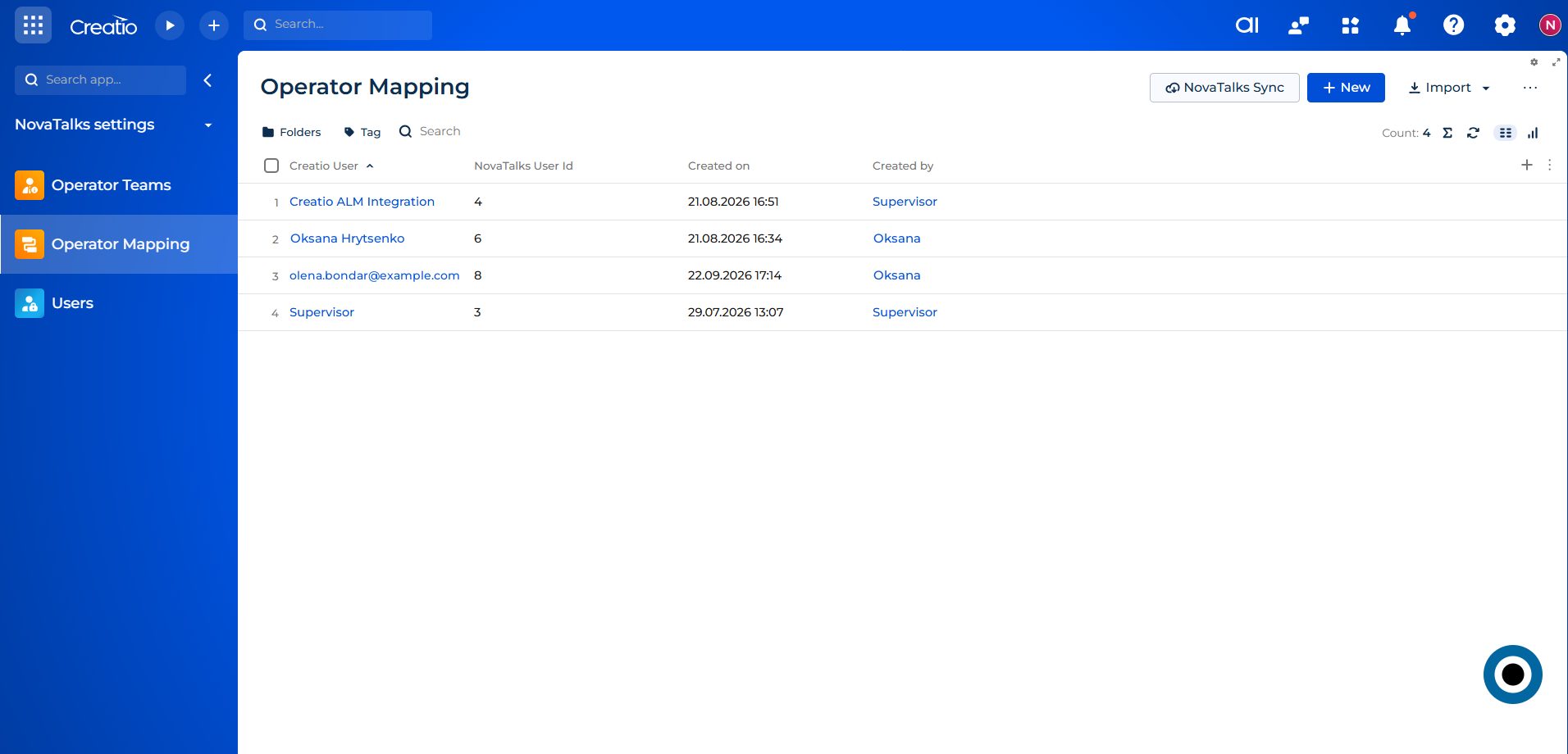
Mapping tells Creatio which user handled a request. Thanks to it, the agent or owner is filled in correctly in calls, dialogs, leads and cases. Automatic sign-in to the NovaTalks app also relies on mapping.
In the Operator Mapping section, each record links a Creatio User to a NovaTalks User Id.
To set up mapping:
Click NovaTalks Sync to pull operators from NovaTalks. A record with a NovaTalks User Id appears for each operator.
Open a record where Creatio User is empty.
Select the matching Creatio user.
Click Save.
To add a record manually, click New and fill in both required fields.
Lookups
The integration uses three Creatio lookups. To open them, go to System Designer → Lookups and find the lookup by name.
Communication Channel
The lookup contains NovaTalks channels and their IDs (NovaTalks Inbox Id). It identifies which channel a request came from and what to create for it automatically:
Auto Create Lead: a lead is created for requests from the channel (see "Lead and opportunity" below);
Auto Create Case: a case is created for requests from the channel (see "Case" below).
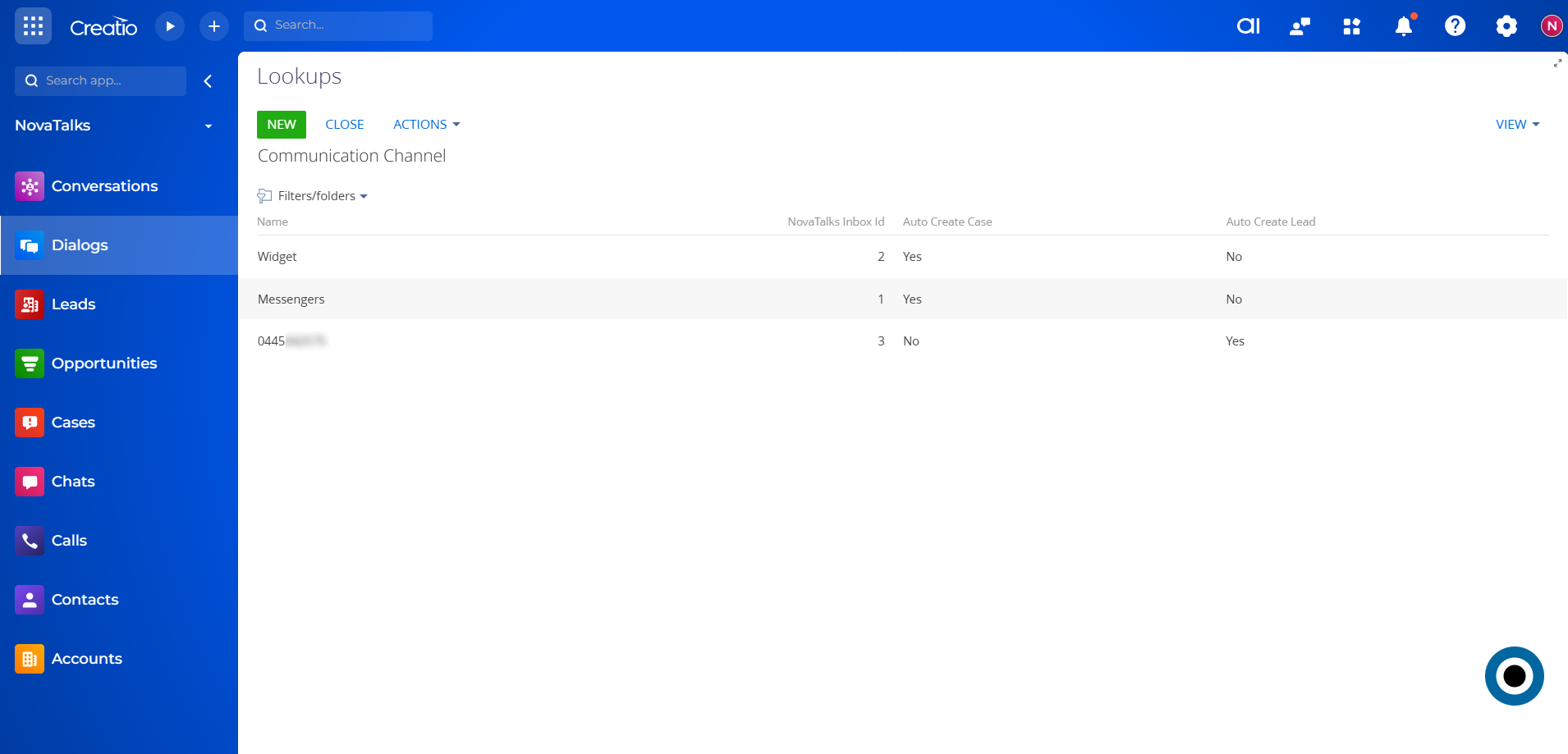
For example, turn on lead creation for sales channels (messengers, the sales department number) and case creation for the support channel (the website widget). If nothing is turned on for a channel, only a contact, a conversation and a dialog are created.
NovaTalks chat links
The lookup stores the match between a NovaTalks conversation, a Creatio contact and the communication option the customer writes from (for example, a Telegram ID). This lookup makes sure new customer messages land in the right conversation and with the right contact.
Each record contains:
the conversation in Creatio;
the contact the conversation is linked to;
the contact's communication option: the customer's ID in the channel;
the NovaTalks conversation ID.
Use the lookup to check which contact a conversation is linked to if customer messages appear in the wrong card.
NovaTalks integration log
The log records data exchange between NovaTalks and Creatio. Use it to check how the integration works: whether an event arrived from NovaTalks, when, and whether Creatio processed it. If a conversation, contact, lead or case does not appear in Creatio, check the log before contacting support.
Opening the contact card automatically
This setting defines whether Creatio opens the contact card when a new conversation arrives for the agent:
on: the card of the contact in the conversation opens automatically;
off: the card does not open. The agent can open it with the Contact button in an open conversation.
The setting is set for each user separately. Agents can change it in their profile, and administrators can change it in the user card.
In the agent's profile
Click your avatar in the upper right corner of Creatio and open your profile.
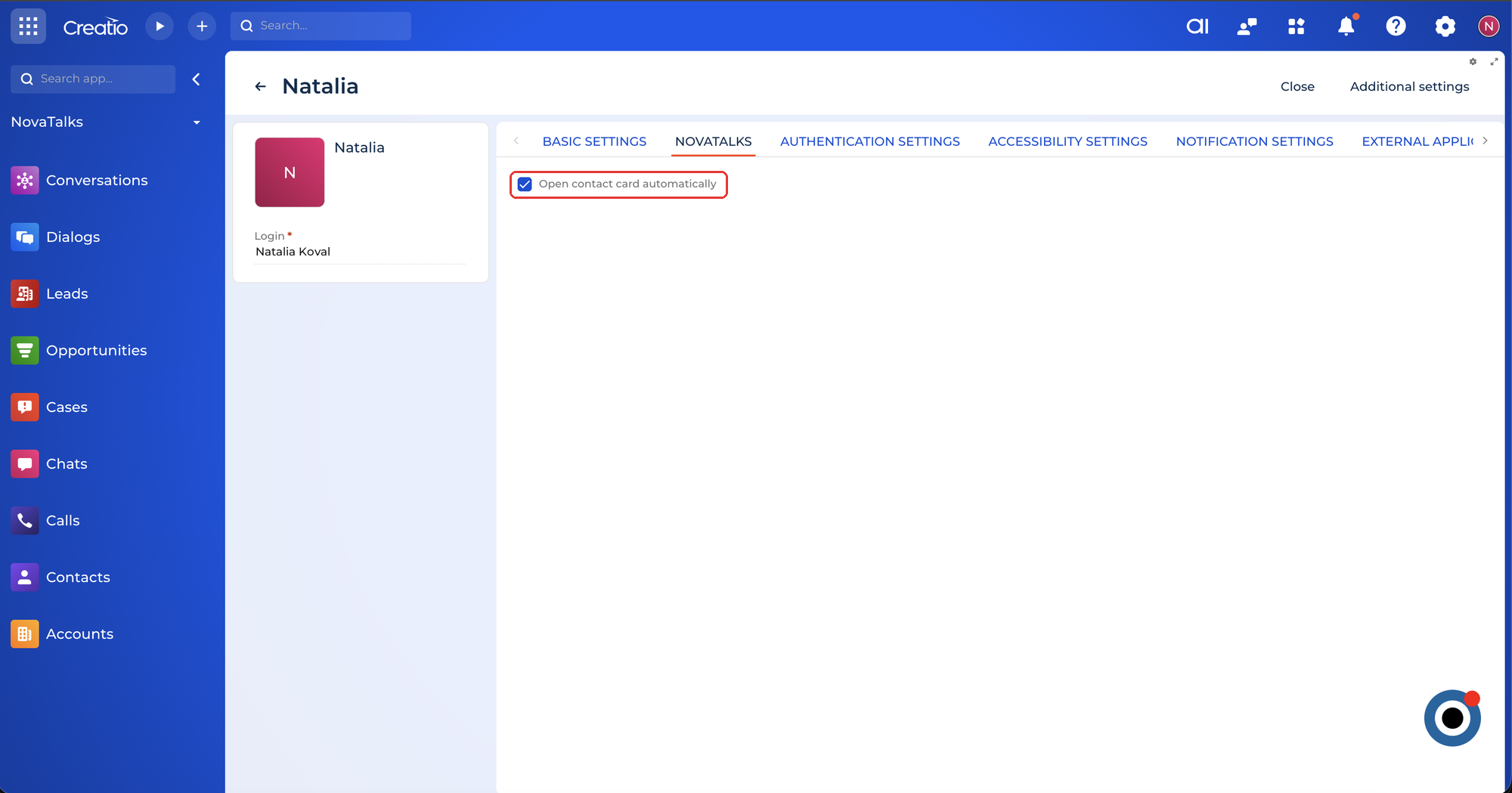
Go to the NovaTalks tab.
Select or clear the Open contact card automatically checkbox.
In the user card (for administrators)
Open System Designer → System users.
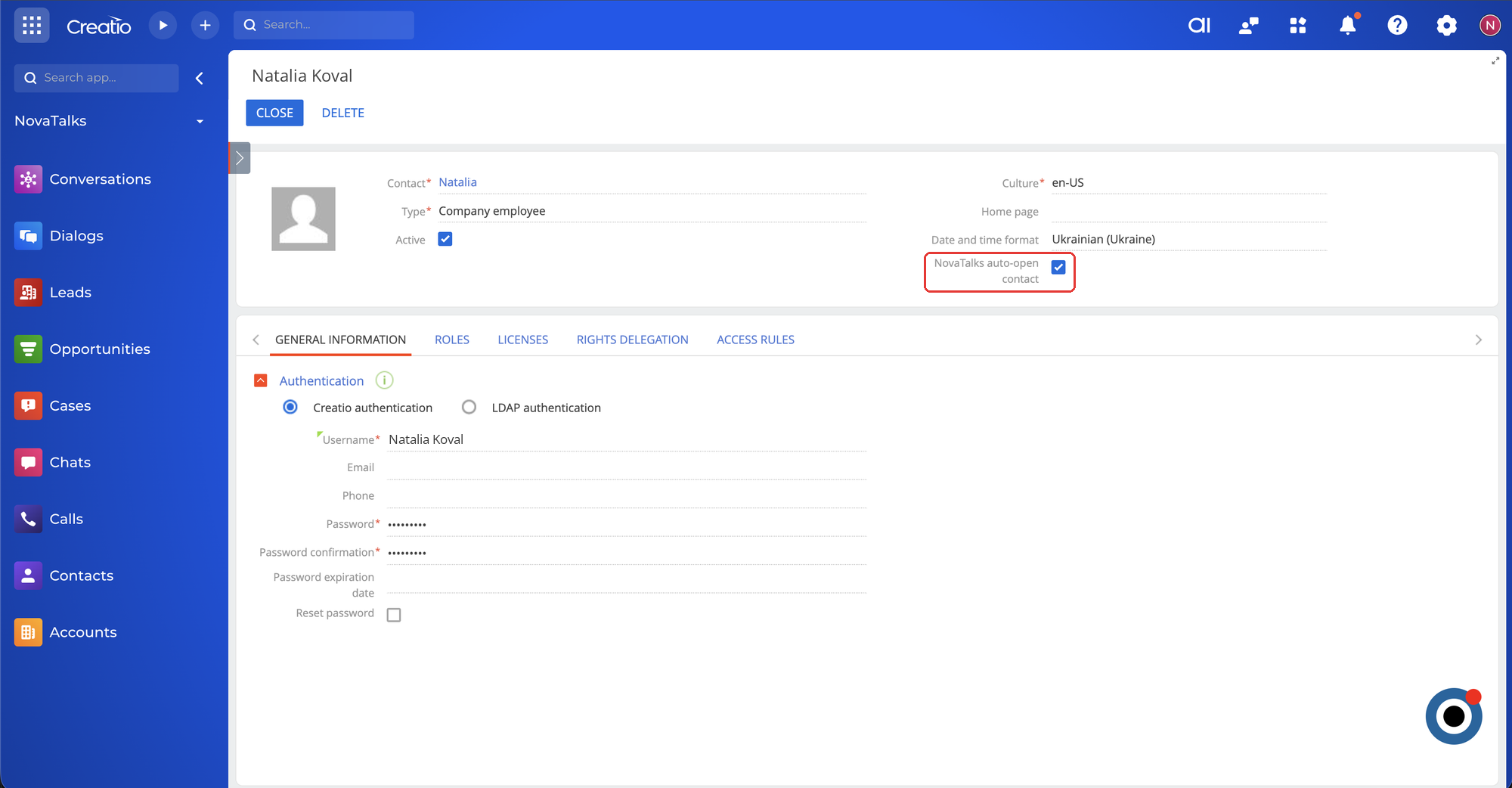
Open the user's card.
Select or clear the NovaTalks auto-open contact checkbox.
The NovaTalks app in Creatio
Opening the app and signing in
You can open the app from any Creatio page in two ways:
with the NovaTalks icon on the Creatio top bar;
with the round NovaTalks button in the lower right corner of the screen. It also shows badges for new requests.
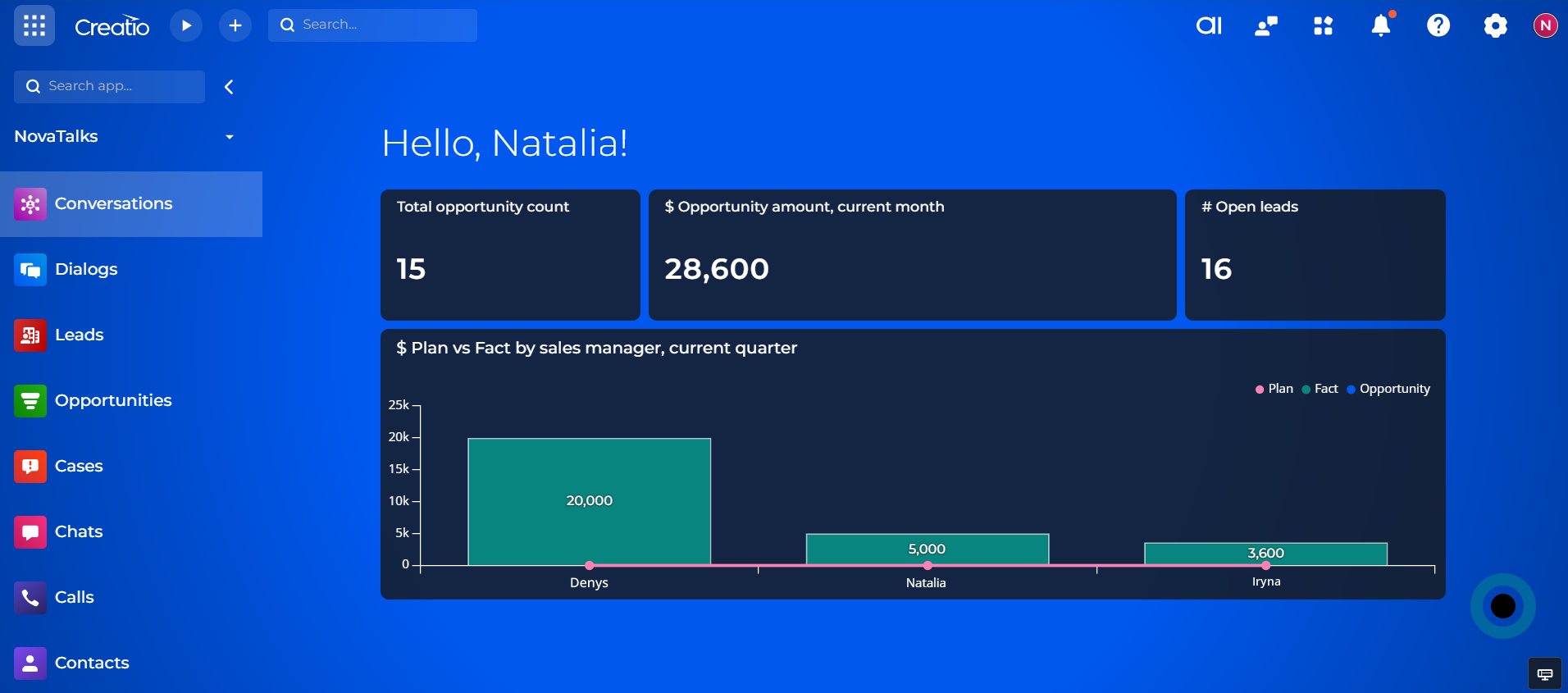
Agents are signed in to NovaTalks automatically when they sign in to Creatio. There is no need to enter a separate login and password.
Conversations tab
The tab lists the conversations available to the agent. You can filter conversations by assignment type (mine, unassigned, all), status, channels and teams.
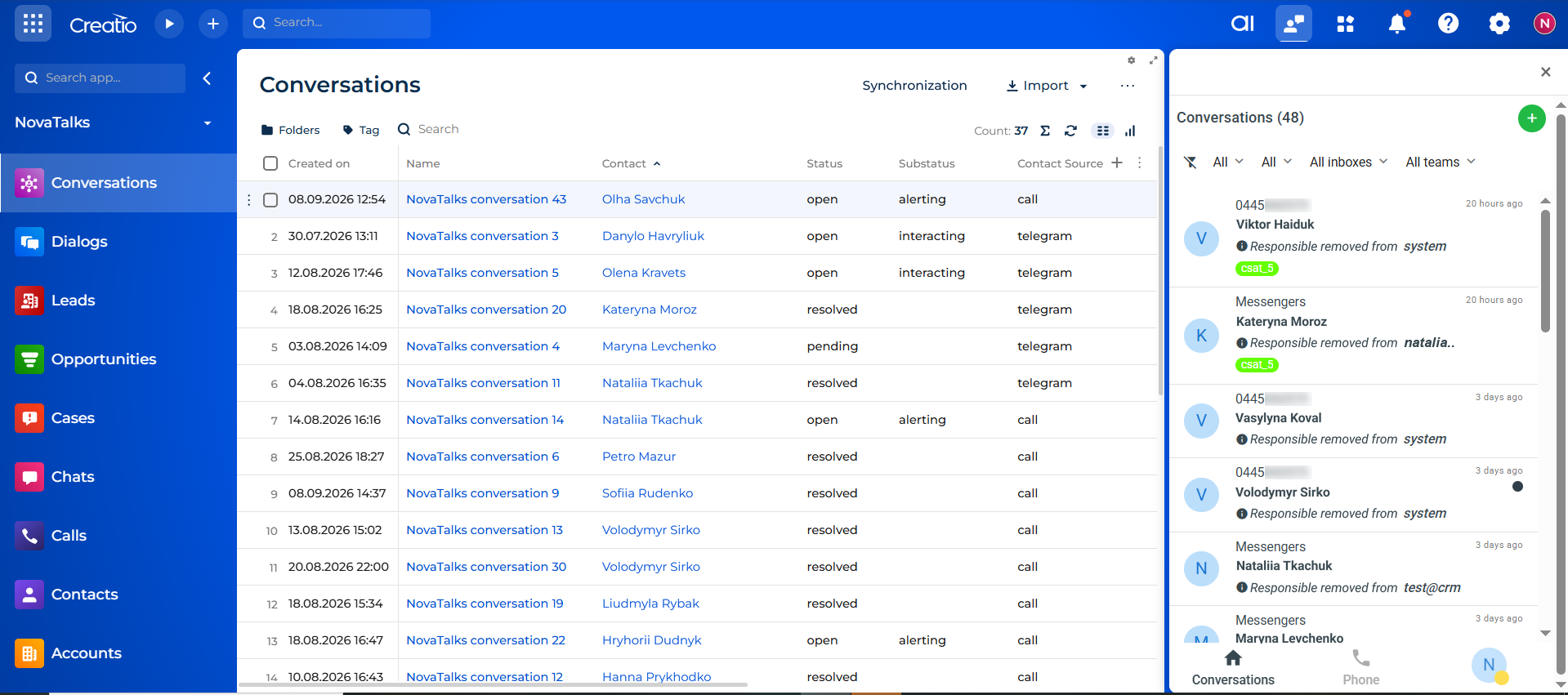
In an open conversation, the agent can:
view the request history;
send messages with attachments;
leave a private note that only agents can see;
change the conversation status;
change the assigned agent or team;
add a tag;
open the contact card with the Contact button.
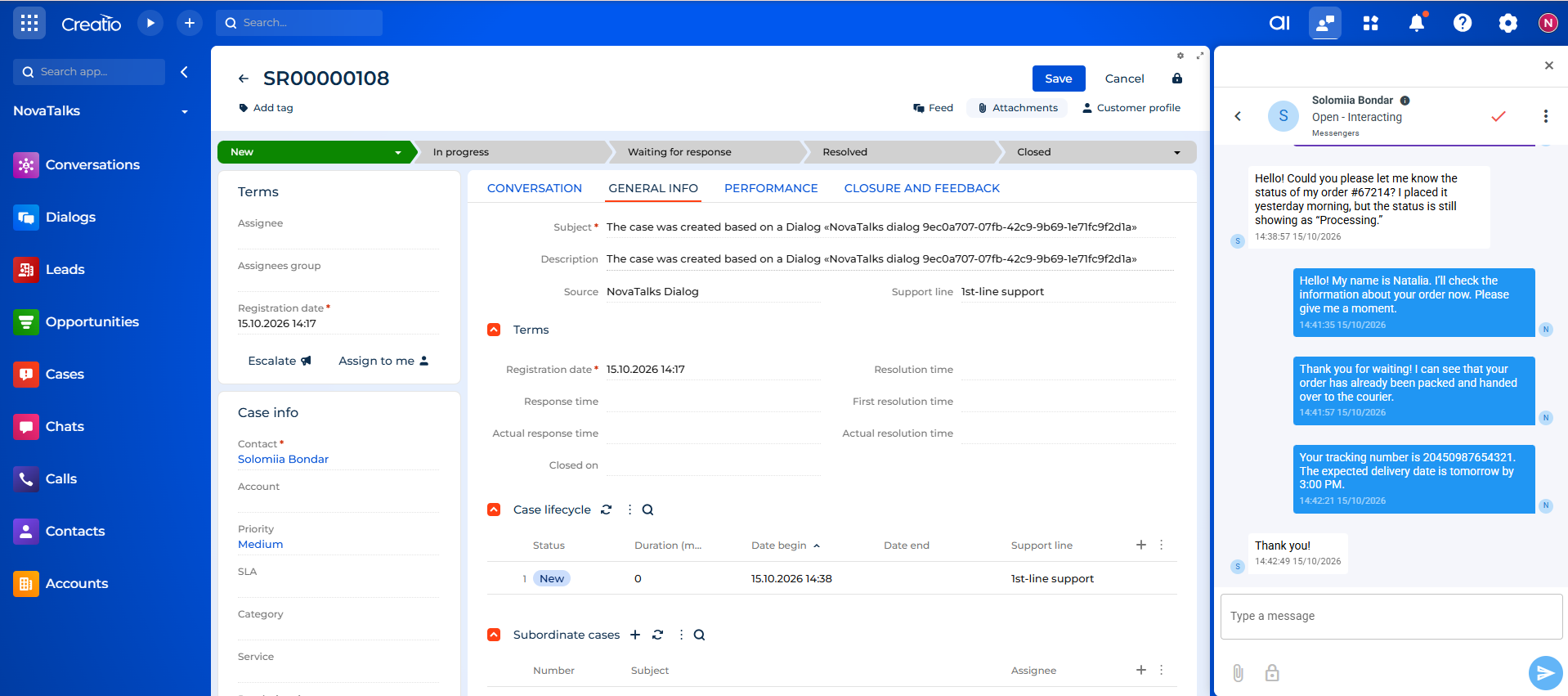
Contact button
The Contact button opens the Creatio card of the contact in the current conversation. The agent does not need to search for the customer manually.
The button is available only when a conversation is open in the app. It is unavailable in the conversation list, on the Phone tab, in settings and in other parts of the app.
New dialog
New dialog lets you call or message a customer first. To start one, click + on the Conversations tab, choose a call or a message, and enter the contact details, channel and team.
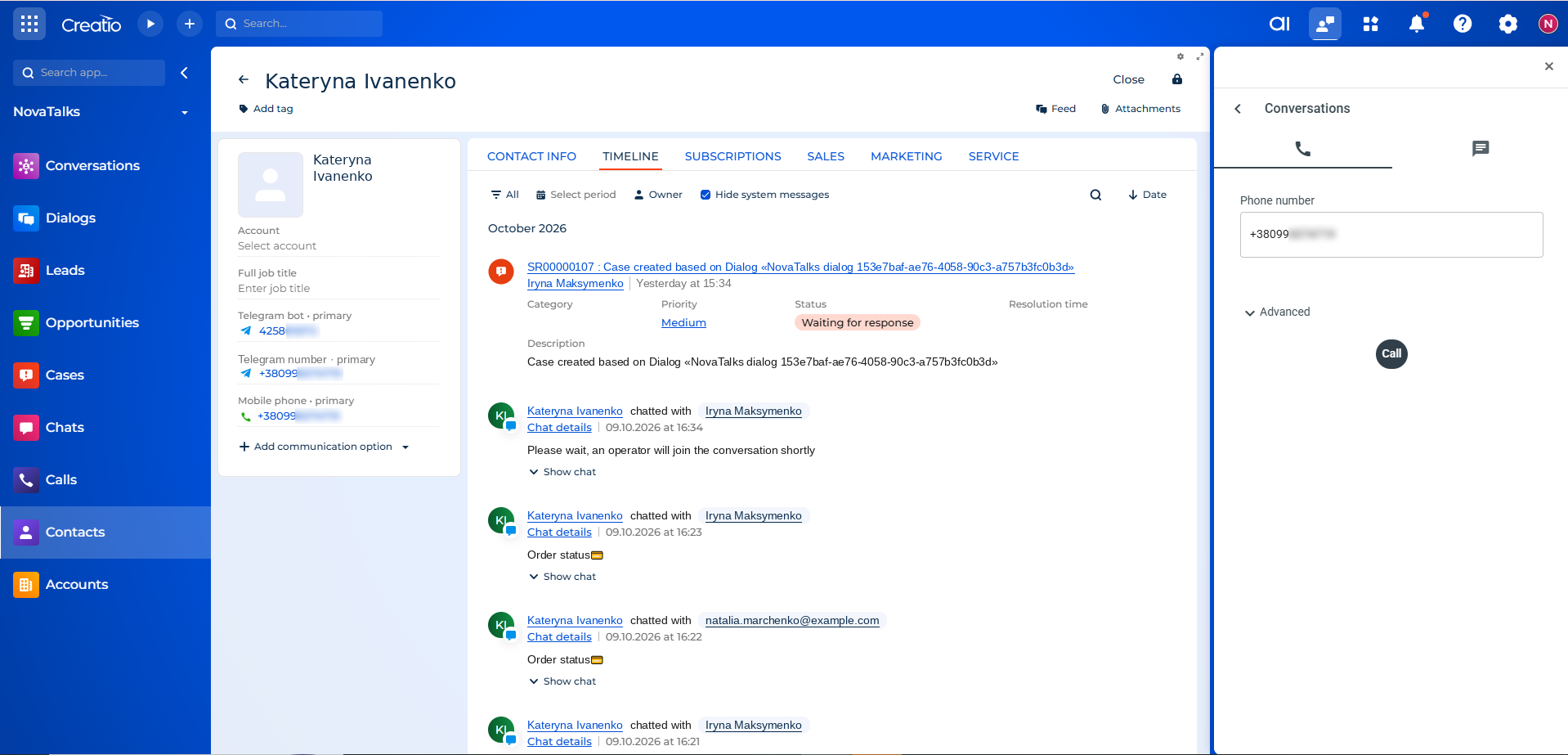
New dialog also opens automatically when you click a phone number or messenger ID in a contact, lead, opportunity or case card. If a conversation with the customer already exists in that messenger, the app opens it.
Phone tab
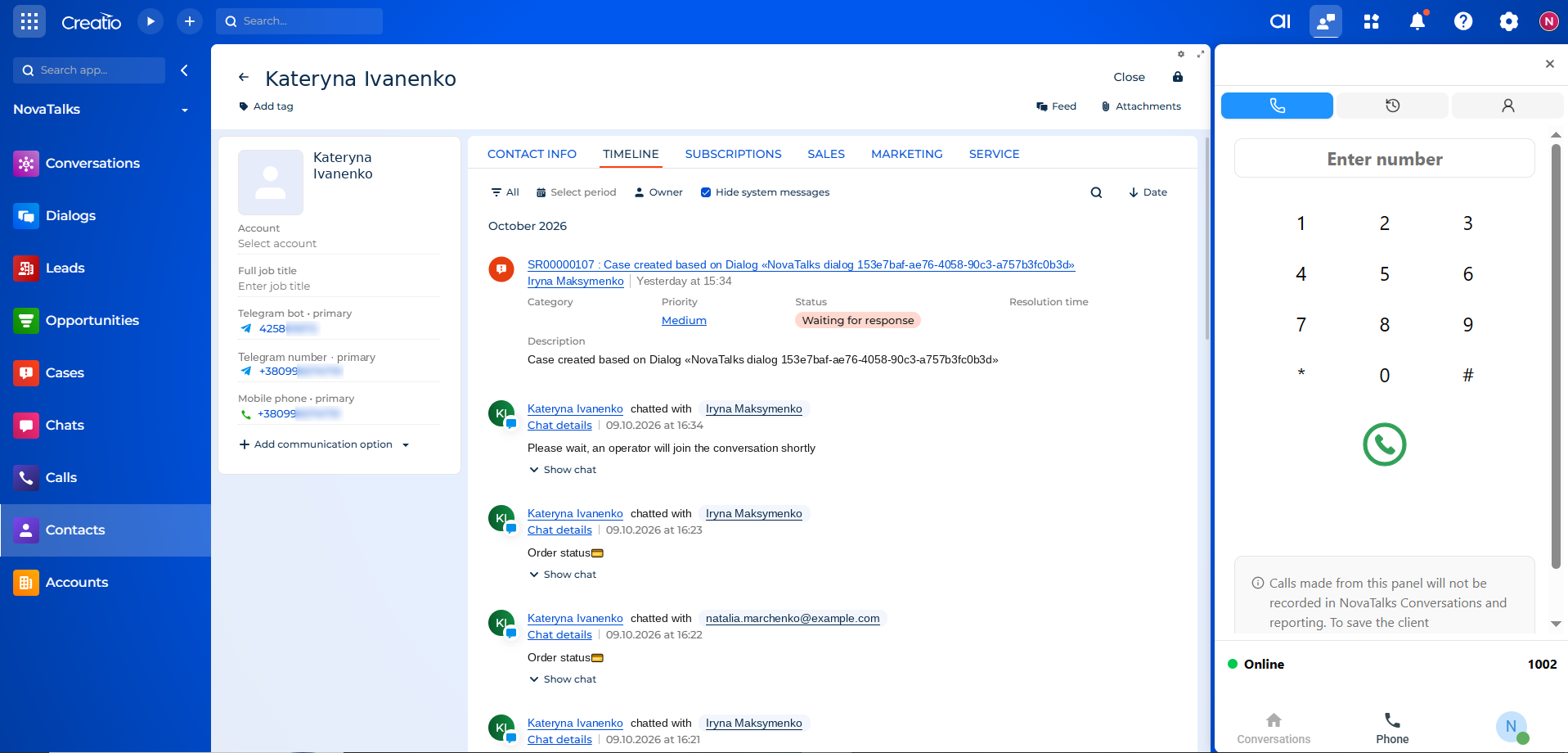
The Phone tab is a WebRTC softphone in the browser. All NovaTalks calls go through it. You can dial a number directly from the tab, including another agent's extension.
Profile settings
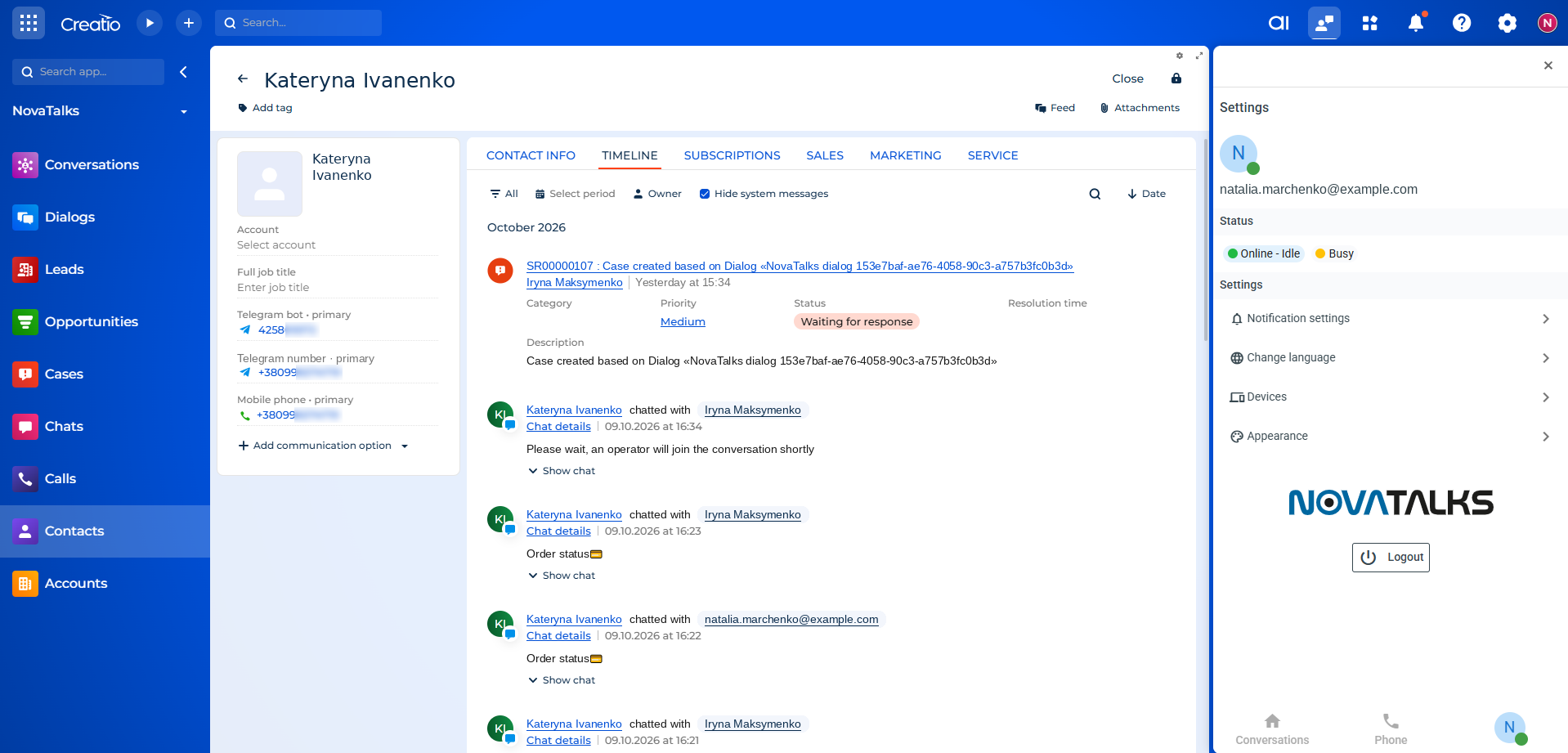
In the profile settings, the agent can:
change their status: Online means requests are distributed to the agent, Busy (with a reason) means they are not;
set up browser notifications;
change the app language;
view and end active sessions on other devices.
Handling incoming requests
When a new call or chat arrives, the app opens on the conversation page automatically, even if it was closed. The agent accepts or rejects the request.
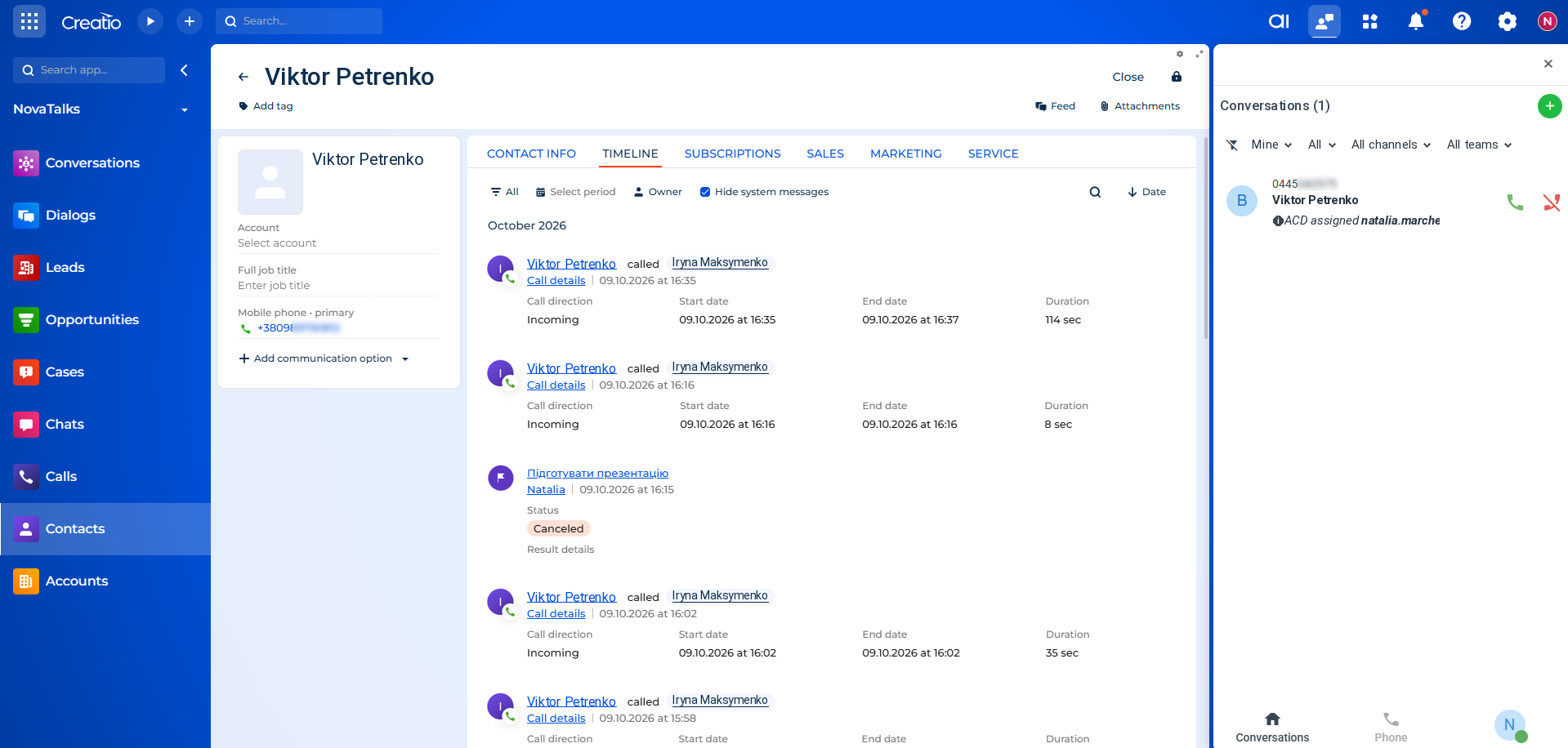
If auto-accept is turned on for the agent:
for an incoming call, the app opens on the active conversation page;
for an incoming chat, the app does not open, and a badge for the new request appears on its icon.
To stop receiving requests for a while, set your status to Busy.
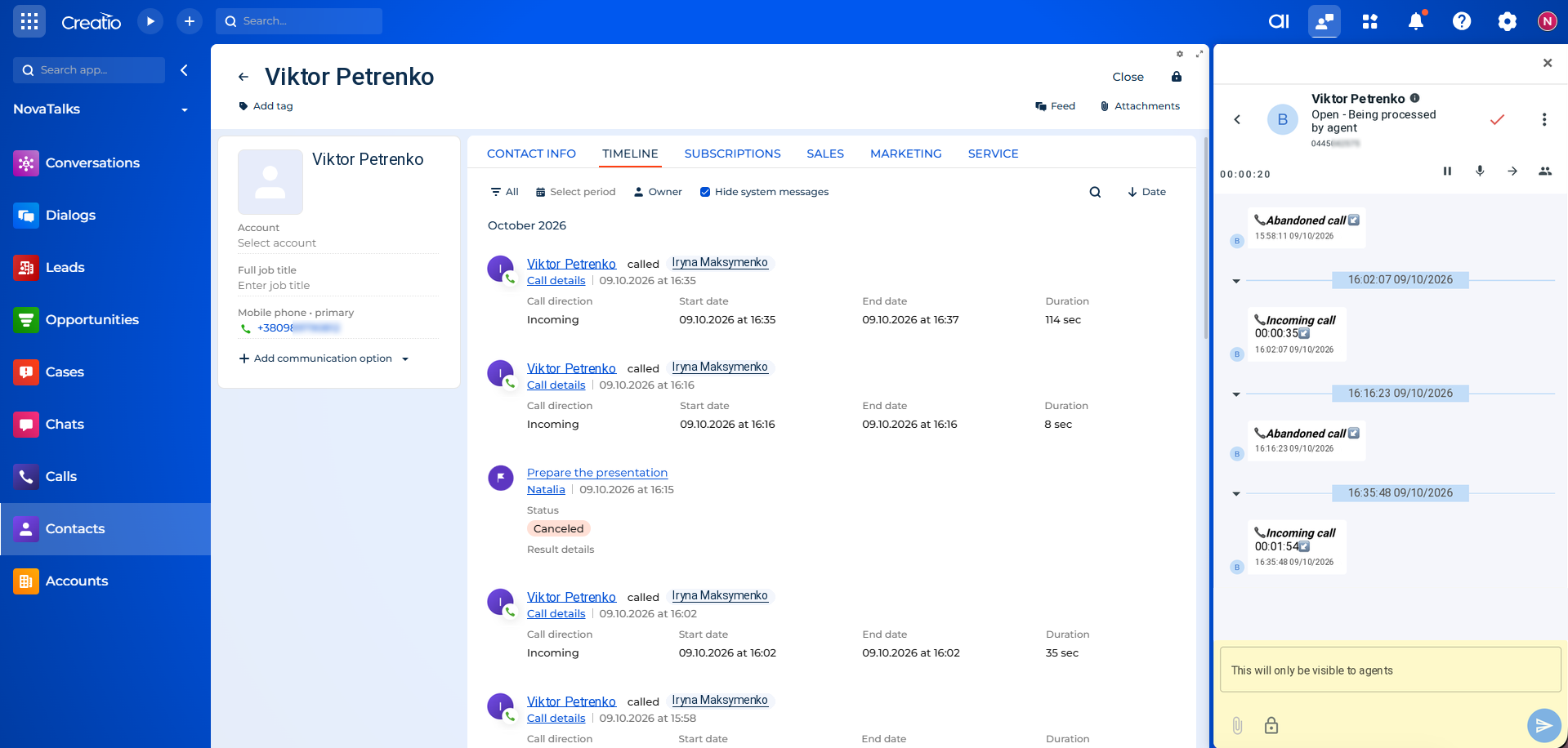
After accepting a call, the agent can:
mute the microphone;
put the call on hold;
make a direct transfer to an agent or team;
make a consultative transfer;
see the call duration;
change the status and end the call.
Automatic record creation in Creatio
Contact
A contact is created for every new request. The system looks for a contact by phone number or email:
if a contact is found, the conversation is linked to it;
if not, a new contact is created.
After that, all of the customer's requests land in their card automatically.
Lead and opportunity
If Auto Create Lead is turned on for the channel, for a new dialog the system:
Looks for a contact's lead at a non-final stage. If a lead is found, no new lead is created, and the lead owner gets a notification about the new dialog.
If all of the contact's leads are closed, looks for an opportunity at a non-final stage. If one is found, the opportunity owner gets a notification.
If there is no open opportunity, creates a new lead.
If there are several open leads or opportunities, the notification is sent for the oldest one.
Case
If Auto Create Case is turned on for the channel:
if the contact has a case in progress, its owner gets a notification about the new dialog;
if not, a new case is created.
Owner
Lead: the first agent who handled the dialog becomes the owner. The owner does not change after that.
Case: the owner is updated every time another agent handles the case.
Notifications
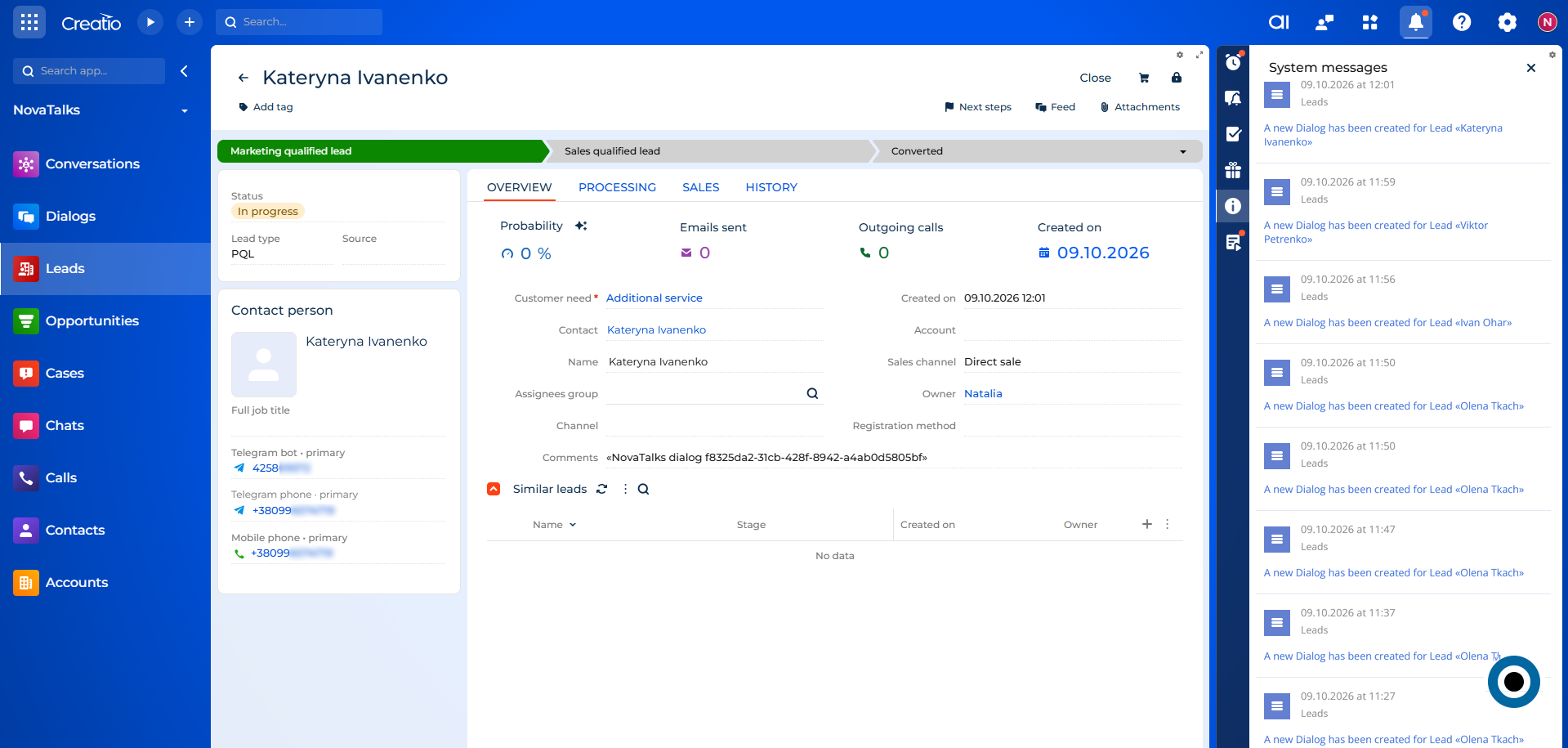
Notifications about new dialogs for leads, opportunities and cases appear in Creatio system messages (the bell icon). Click a notification to open the lead, opportunity or case card.
Communication history in Creatio
The integration adds the Conversations and Dialogs sections to Creatio and fills the standard Chats and Calls sections.
Contact card
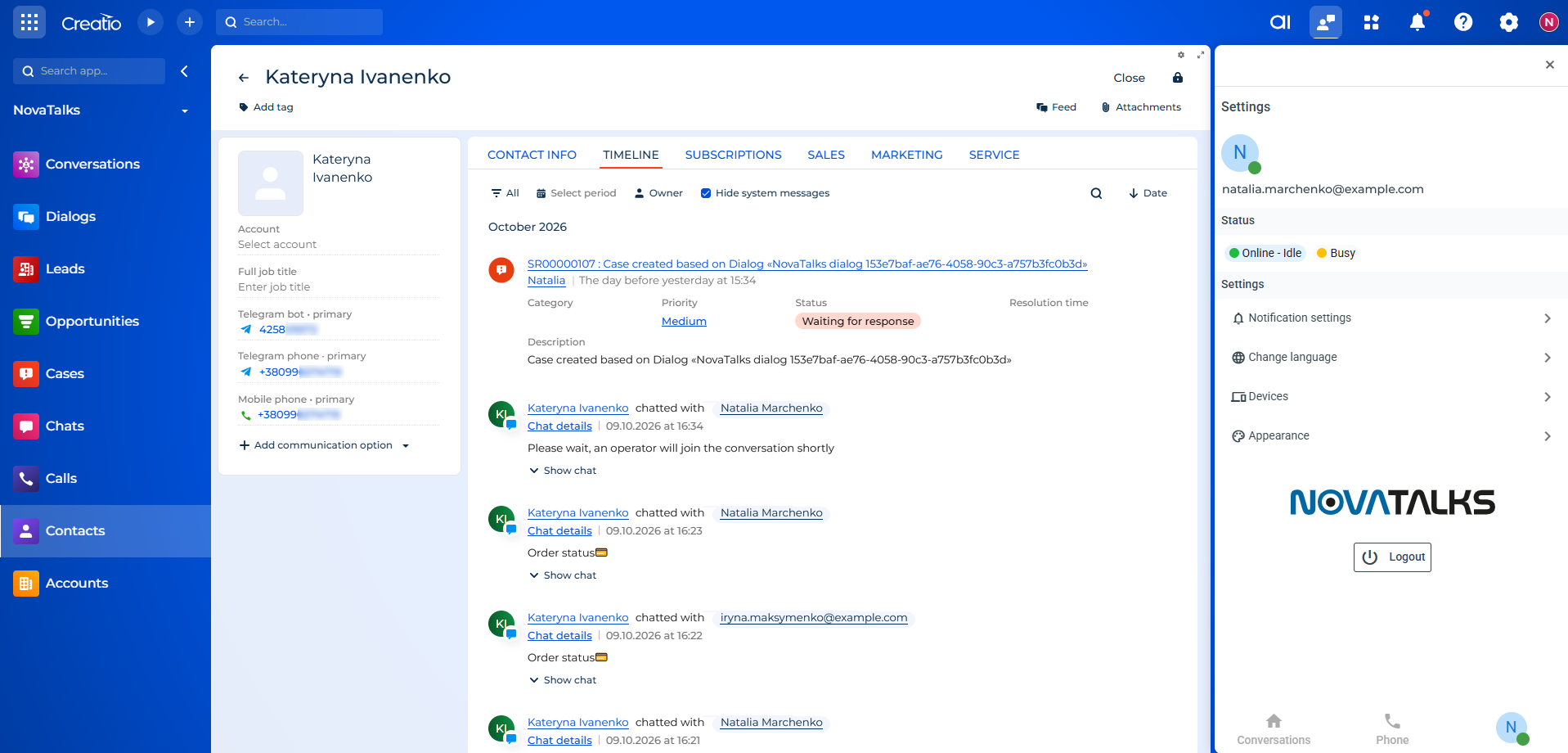
The Timeline tab of the contact card shows all of the customer's requests: calls, chats, leads and cases with the date, channel and agent. From the timeline, you can open chat or call details or expand the messages with Show chat.
Call card
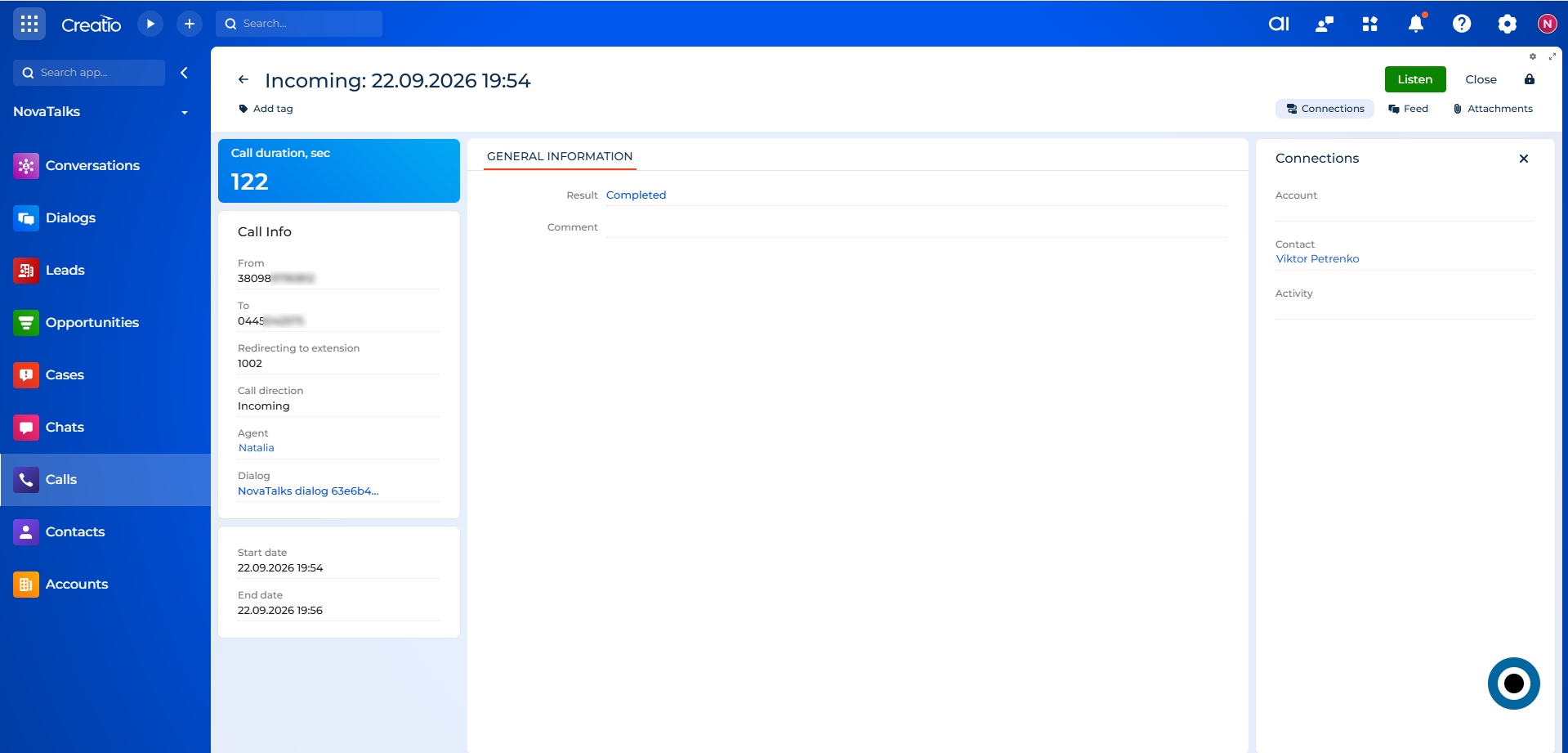
The call card shows the direction (incoming or outgoing), date and time, duration, numbers, agent, related dialog and contact, call result, and a player for the call recording.
Conversations
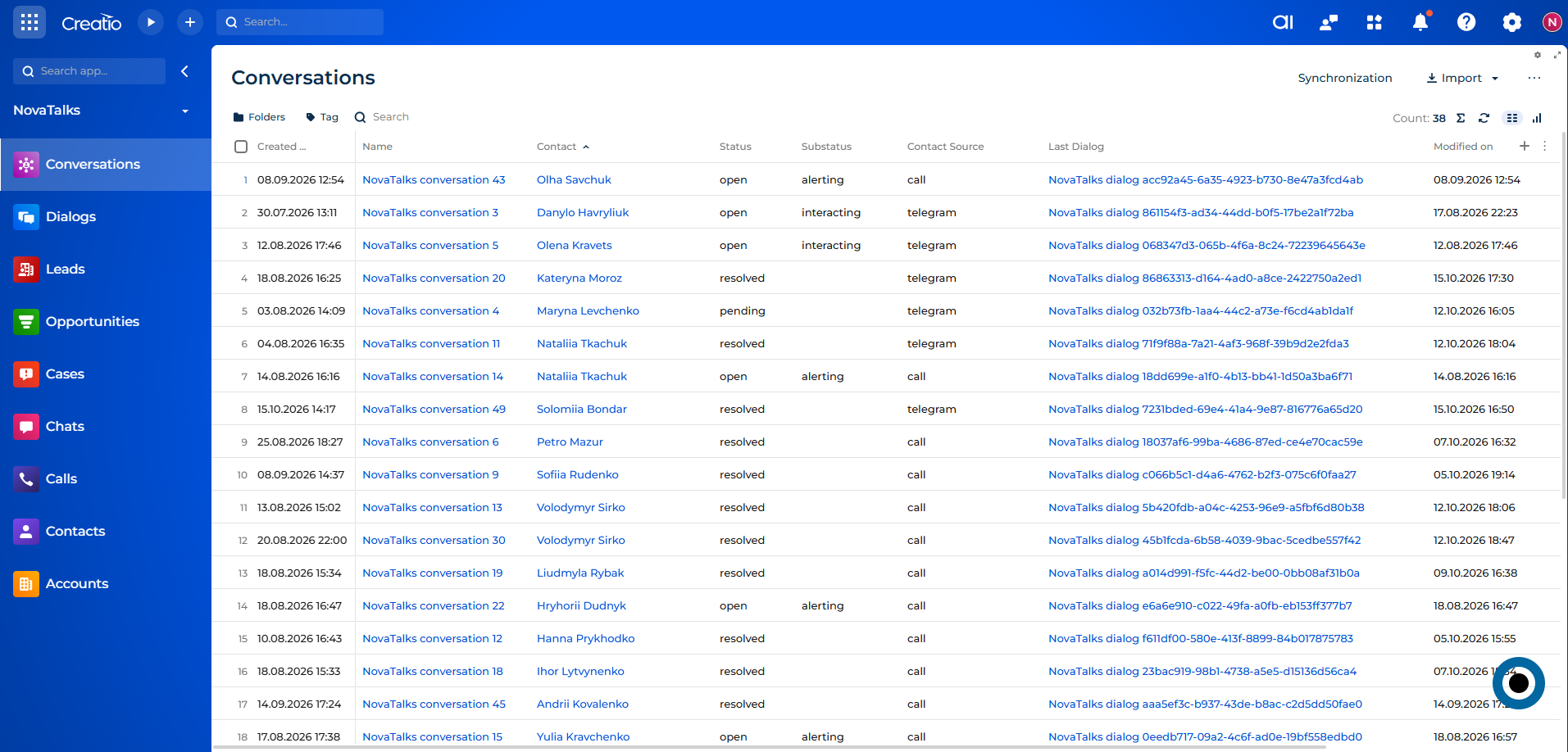
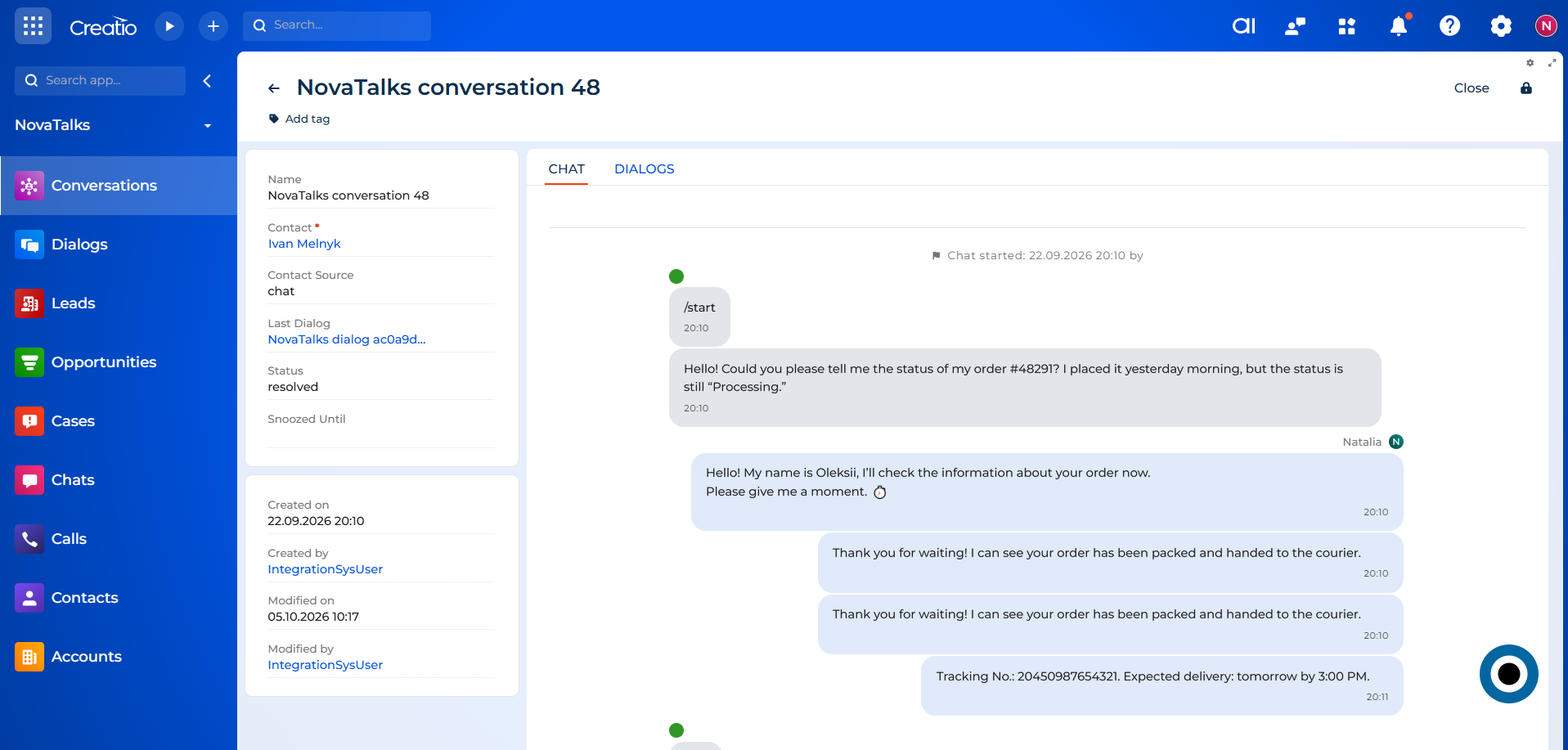
The Conversations section contains all conversations with customers: contact, source (call, chat or messenger), last dialog, status and substatus.
The conversation card shows the contact, source, a link to the last dialog, and the Chat and Dialogs tabs.
Dialogs
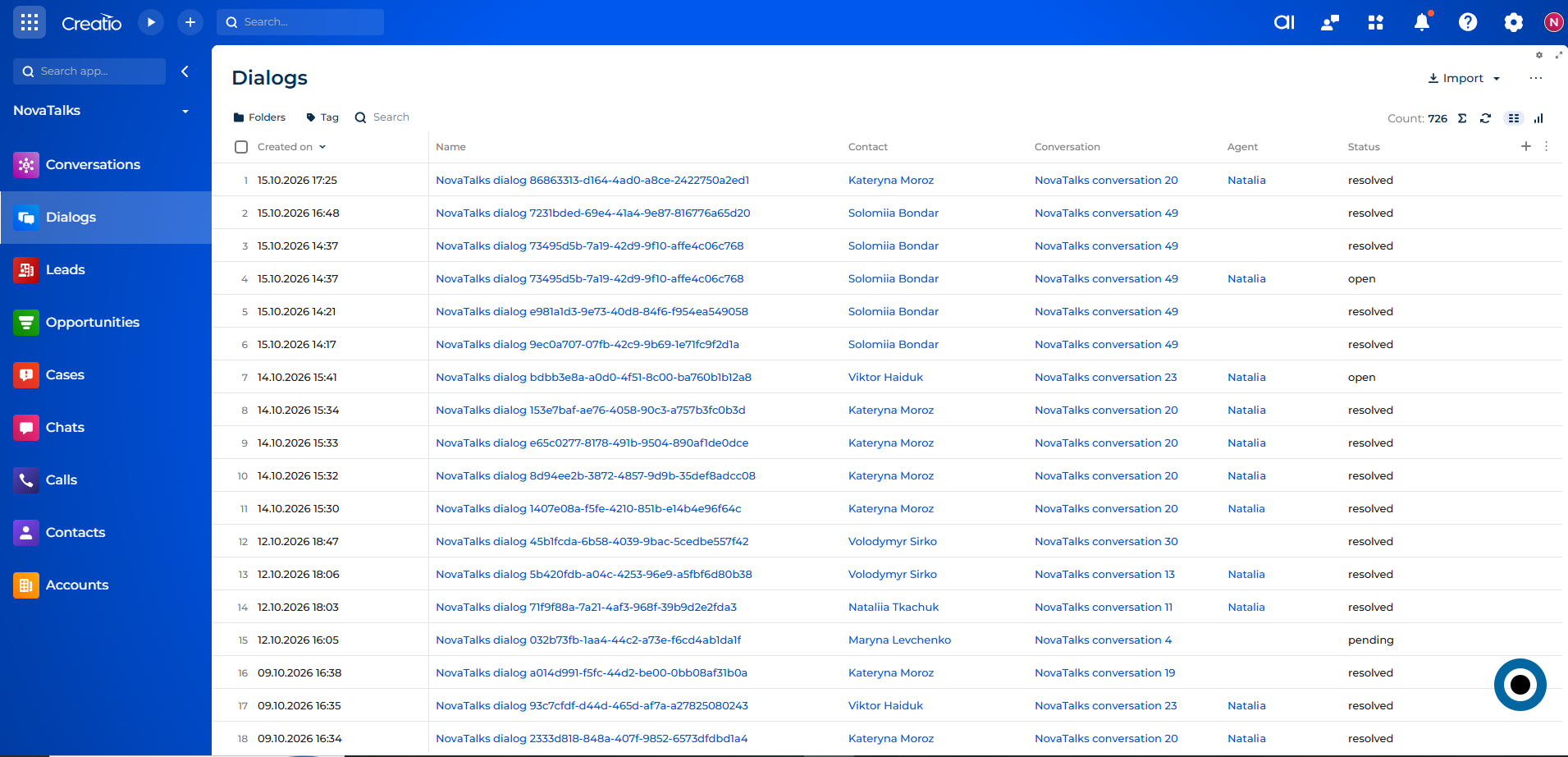
A dialog is a separate handling session within a conversation. One conversation can contain many dialogs: the customer got in touch several times, and a different agent could handle each one.
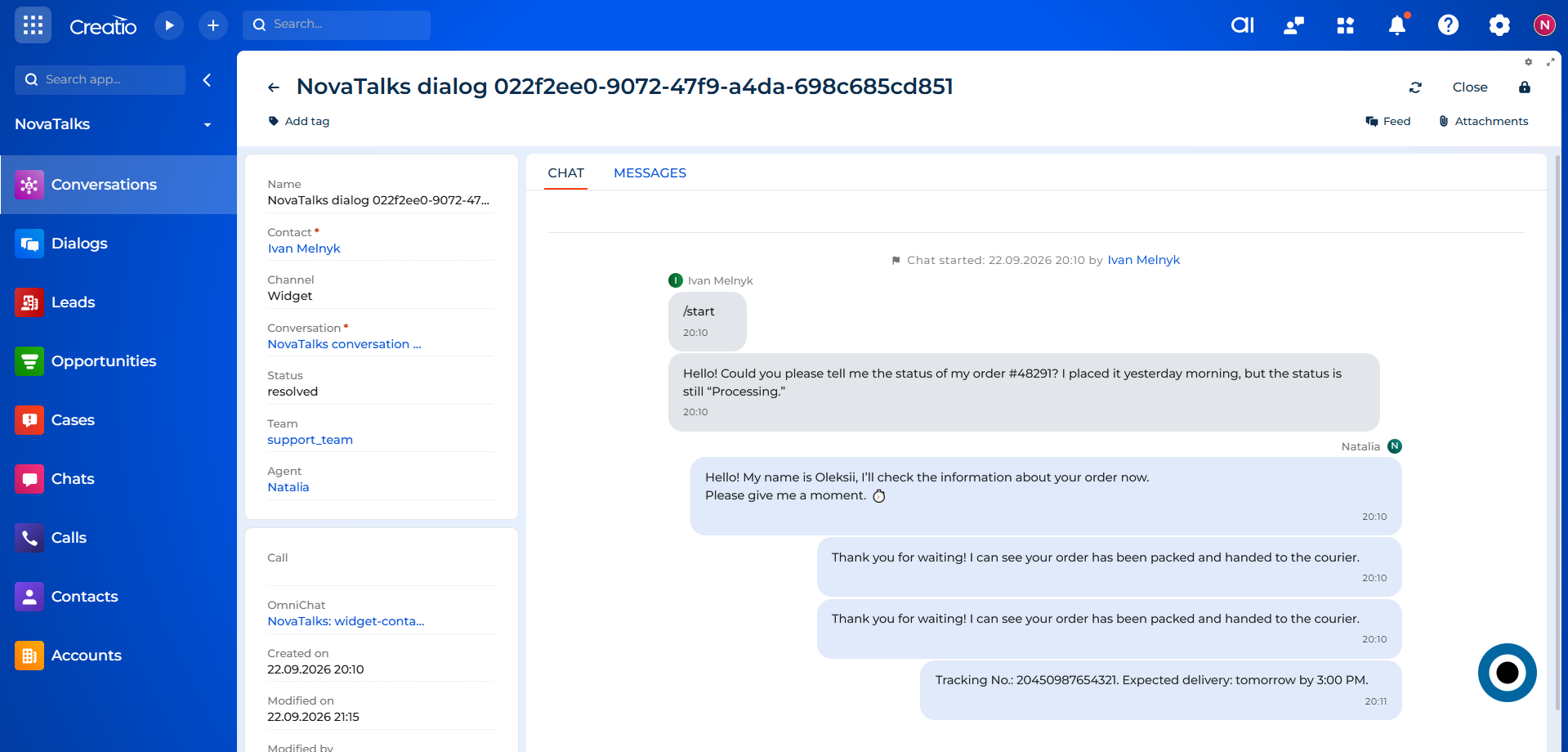
The dialog card shows the contact, channel, status, team and agent, as well as links to the related chat and call.
Contact data sync
When a contact's name, primary phone number or email changes in Creatio, the data is updated automatically in the matching NovaTalks contact.
Limitations
Calls dialed directly from the Phone tab are not saved in Creatio history.
If a customer writes from a new channel that could not be matched, a separate contact card may be created. Merge it with the existing one manually.
Only the contact's name, primary phone number and email are synced from Creatio to NovaTalks.
If an operator has no mapping, Creatio cannot identify the agent in calls, dialogs and cases.
Events from NovaTalks are processed only while Creatio is available. If Creatio was unavailable, data from that period may not reach the CRM.
Troubleshooting
A conversation or call did not appear in Creatio
NovaTalks integration log: whether the event arrived and was processed. Whether the channel is in the Communication Channel lookup.
A lead or case is not created
The Auto Create Lead / Auto Create Case checkboxes for the channel. Whether the contact already has an open lead, opportunity or case in progress: in that case, a notification is sent instead of a new record.
Customer messages land in the wrong card
The conversation record in the NovaTalks chat links lookup.
The agent is empty in a call or dialog
The operator's record in the Operator Mapping section.
A new operator or team is missing in Creatio
Click NovaTalks Sync in the Operator Teams or Operator Mapping section.
The NovaTalks app does not open or sign-in fails
The operator's mapping and the NovaTalks. IFrame system setting.
The contact card does not open automatically for a new conversation
The Open contact card automatically checkbox in the agent's profile (NovaTalks tab) or NovaTalks auto-open contact in the user card.
FAQ
Last updated